

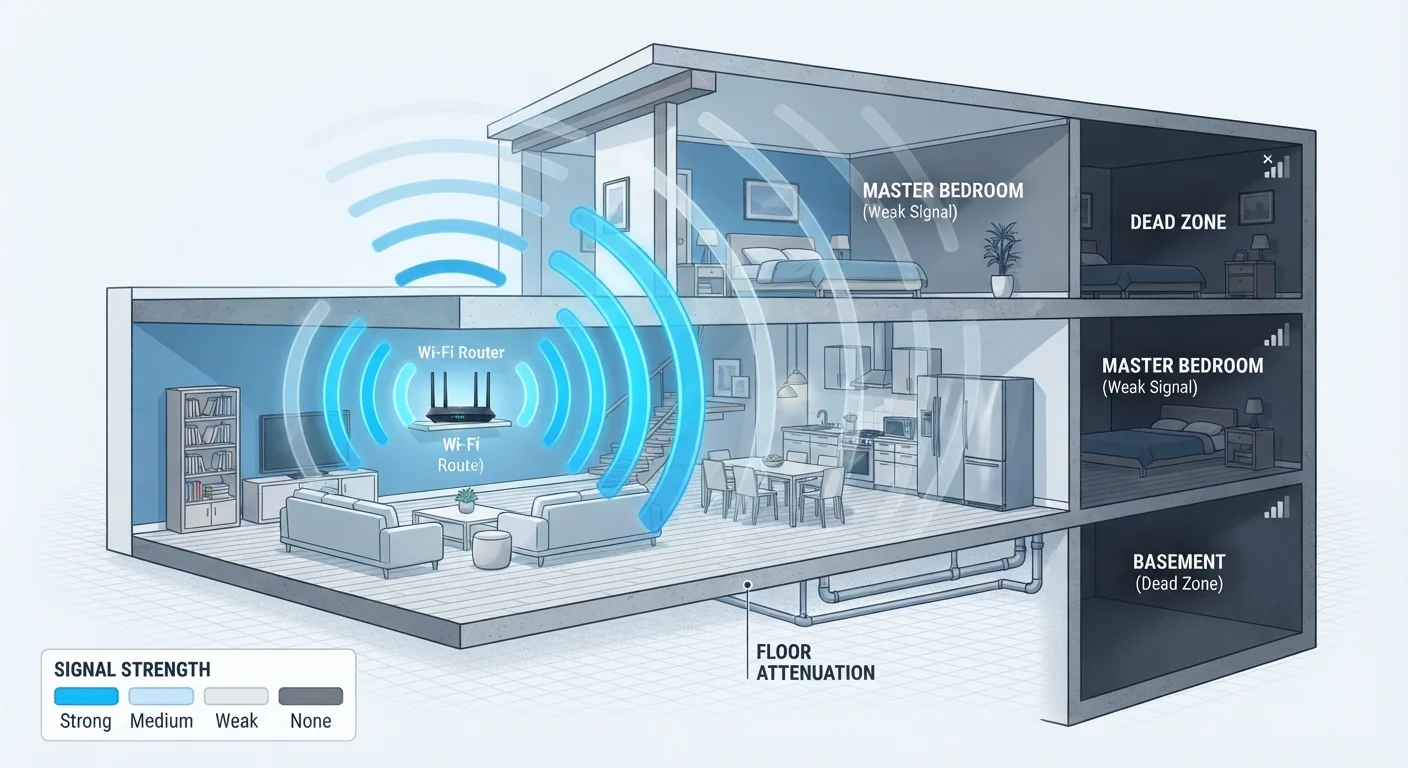
The Physics Behind Signal Drop-Off
Wi-Fi signals are radio waves, and like all radio waves, they lose energy as they travel through space and matter. This natural weakening - called attenuation - is the root cause of most dead zones. Two forces drive it: distance and absorption by physical materials.
As distance from your router doubles, signal strength doesn't just halve - it drops according to the inverse square law, meaning the degradation is steep. Add a few walls or a floor into that path, and the compounding effect can reduce a strong signal to nearly nothing before it reaches the far bedroom or basement office.
~30%
Signal lost passing through a single drywall partition
General estimates from RF engineering guidelines suggest a standard drywall interior wall attenuates Wi-Fi signal by roughly 3-5 dB, translating to a measurable reduction in usable signal strength.
Up to 80%
Signal reduction through reinforced concrete
RF propagation studies commonly cite 10-15 dB of attenuation for reinforced concrete walls, which can reduce effective signal strength by up to 80% in a single pass.
2x
Speed advantage of 5 GHz over 2.4 GHz in open space
Under ideal, line-of-sight conditions, the 5 GHz band can deliver roughly twice the throughput of 2.4 GHz, though this advantage erodes quickly through walls and floors.
Understanding this physics helps explain why moving a router even a few feet - or changing which frequency band a device uses - can make a noticeable difference in coverage.
What Your Home Is Made Of Matters More Than You Think
Not all walls are created equal when it comes to Wi-Fi. The building materials in your home determine how much signal gets through - and some are far more obstructive than others.
- Drywall: Minimal obstruction; standard in most US interior walls.
- Brick and concrete: Heavy signal absorption; common in older homes, basements, and external walls.
- Metal studs and foil-backed insulation: Can reflect and scatter signals rather than allowing them to pass through.
- Glass (low-e windows): Modern energy-efficient windows often contain metallic coatings that block radio waves surprisingly well.
- Water: Large fish tanks, water heaters, and even the human body absorb 2.4 GHz signals.
A home with a concrete foundation, brick exterior walls, and metal-framed interior partitions can create dead zones even with a high-quality router. This is why everyday placement habits can quietly undermine performance without any obvious cause.
Frequency Bands and Why They Behave Differently
Most modern routers broadcast on two frequency bands: 2.4 GHz and 5 GHz. These aren't interchangeable - each has trade-offs that affect dead zones directly.
The 2.4 GHz band travels farther and penetrates solid materials better, making it more likely to reach distant or obstructed rooms. Its downside: it's a congested frequency shared with microwaves, Bluetooth devices, and neighboring networks, which can cause interference and slower speeds.
The 5 GHz band carries significantly more data and handles congestion better, but its shorter wavelength means it's absorbed more readily by walls and floors. Devices that connect on 5 GHz may show strong speeds near the router and struggle just one room away.
Match the Band to the Task and Location
If a room is close to your router with a clear line of sight, connect devices to the 5 GHz band for better speed. For rooms farther away or separated by dense walls, the 2.4 GHz band will maintain a more stable connection even if top speeds are lower. Many modern routers support 'band steering,' which attempts to do this automatically.
Many routers now also support Wi-Fi 6 (802.11ax), which includes improvements to handle interference and congestion more efficiently - but the underlying physics of frequency penetration still apply.
Interference From Other Devices and Networks
Physical obstacles aren't the only culprit. Electronic interference can degrade signal quality even when a device appears to have a reasonable connection. Common sources include:
- Microwave ovens, which emit electromagnetic energy on the 2.4 GHz band when running
- Cordless phones and baby monitors using older, non-Wi-Fi radio frequencies
- Neighboring Wi-Fi networks competing on the same channel
- Bluetooth devices in close proximity to both the router and connected device
Channel congestion is a particularly underappreciated problem in apartment buildings or dense neighborhoods. When dozens of routers compete on the same 2.4 GHz channel (most commonly channels 1, 6, and 11), the overlapping signals create mutual interference. Switching to a less crowded channel - or enabling automatic channel selection in your router's settings - can improve this. You can also learn more about how these factors connect to broader performance issues by reading about common Wi-Fi speed misconceptions.
Public Networks Have Different Risks
If dead zones at home lead you to use public Wi-Fi more frequently as a workaround, it's worth knowing those networks carry their own concerns. Our article on public Wi-Fi risks outlines what to watch for before connecting outside the home.
Frequently Asked Questions
That specific room likely has a combination of factors working against it: distance from the router, walls made of dense materials, or interference sources nearby. Even a single concrete or metal-studded wall between your router and that room can dramatically reduce signal strength.
Yes, significantly. Every wall a signal passes through absorbs and weakens it. The effect compounds with each additional wall, especially if the walls contain metal framing, brick, or concrete rather than standard drywall.
Floors and ceilings contain multiple dense layers - wood, concrete, insulation, and sometimes radiant heating elements - that attenuate radio waves more than interior walls. Signal traveling vertically often weakens faster than signal traveling horizontally.
Yes. Microwaves, baby monitors, and older cordless phones operate on the 2.4 GHz frequency band, the same as many Wi-Fi networks. When these devices run simultaneously, they can disrupt your wireless signal. Switching to the 5 GHz band or a Wi-Fi 6 router can reduce this interference.
It matters enormously. A router tucked in a corner, inside a cabinet, or near the floor pushes its signal in the wrong direction and adds unnecessary obstacles. Placing it centrally and at an elevated height distributes coverage far more evenly across a home.
They're related but not identical. A weak signal (low signal strength) makes it harder for devices to maintain a stable connection. Slow speeds can happen even with a strong signal if your plan's bandwidth is limited or your network is congested. Our article on <a href="/technology-connection/internet-connectivity/common-misconceptions-about-wi-fi-speed-and-what-actually-affects-it">Wi-Fi speed misconceptions</a> covers this distinction in detail.
The content on this site is for informational purposes only and is not a substitute for professional advice. Always consult a qualified professional for guidance specific to your situation.