

Summary
18 items · 30-90 minutes depending on device type and number of accounts
Why This Checklist Exists
Handing off a personal device feels simple - wipe it, pass it on. But the process involves more than a factory reset. Your phone, tablet, or laptop may hold saved passwords, linked financial accounts, cached messages, biometric data, and active sessions on dozens of services. Each of those represents a potential exposure if not addressed before the device leaves your hands.
The risks differ depending on what you're doing with the device. Lending to a family member is different from selling to a stranger online, which is different again from dropping a laptop at an e-waste center. This checklist is organized to help you address every scenario. For a broader look at managing devices across their full lifespan, see our end-to-end device guide.
Back Up Your Data First
Sign Out of All Accounts
Remove Physical Components
Disable Locks and Find My Features
Perform the Wipe
What You'll Need Before You Start
Work through this section before touching any device settings. Having the right information and tools at hand prevents getting stuck mid-process - particularly if a reset locks you out of an account you haven't yet backed up.
Your platform account credentials
Required to sign out of Apple ID, Google Account, or Microsoft account - you cannot complete disassociation without logging in first.
A verified backup location
A cloud account, external hard drive, or second device confirmed to hold your data before you begin wiping.
SIM card eject tool or small pin
Used to open the SIM card tray on smartphones and some tablets - often included in the original device packaging.
2FA recovery codes
Needed to regain access to accounts after removing authenticator apps from the device being handed off.
The device's original charger or a charged battery
Ensures the device doesn't power off mid-reset, which can cause data corruption or an incomplete wipe.
Don't Skip the Sign-Out Step
Many people assume a factory reset automatically removes account associations - it often does not. On devices with Activation Lock (common on iPhones and iPads) or Google's Factory Reset Protection, skipping the sign-out step before resetting can leave the device locked to your credentials and unusable by its next owner. Always sign out through Settings before initiating a reset.
After the Handoff: What Changes for You
Once the device is gone, a few follow-up steps protect you on your end. Revoke access from any account dashboards that list trusted devices - most major platforms let you view and remove active sessions remotely. Update passwords on any accounts where you used that device as a primary login method, especially if you relied on autofill.
If you're setting up a replacement device, the privacy choices you make at first launch matter considerably. Setting up a new device without compromising your privacy walks through the permission prompts and defaults worth reviewing carefully. And if you share devices or living space with others, Personal Devices and the People Who Share Your Home covers account separation strategies that apply to both new and repurposed hardware.
Recycling Is Not a Privacy-Safe Default
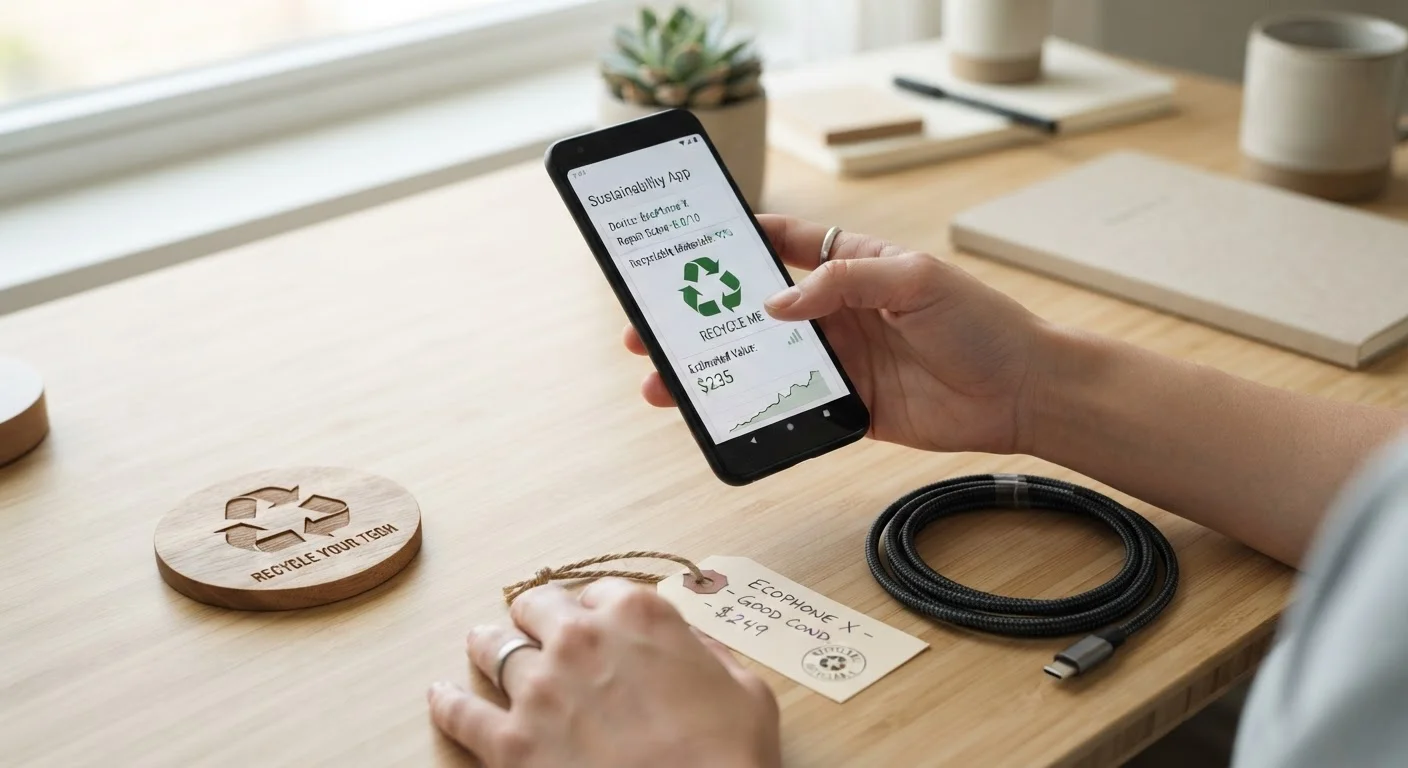
Dropping a device at a recycling center or retailer collection bin without wiping it first is not safe. Recycling programs vary widely in how they handle data - some facilities refurbish and resell devices without sanitizing storage. Treat recycling the same as a sale: complete the full wipe checklist before handoff. For devices too damaged to reset normally, consult a professional data destruction service or your local e-waste facility about certified destruction options.
The content on this site is for informational purposes only and is not a substitute for professional advice. Always consult a qualified professional for guidance specific to your situation.