

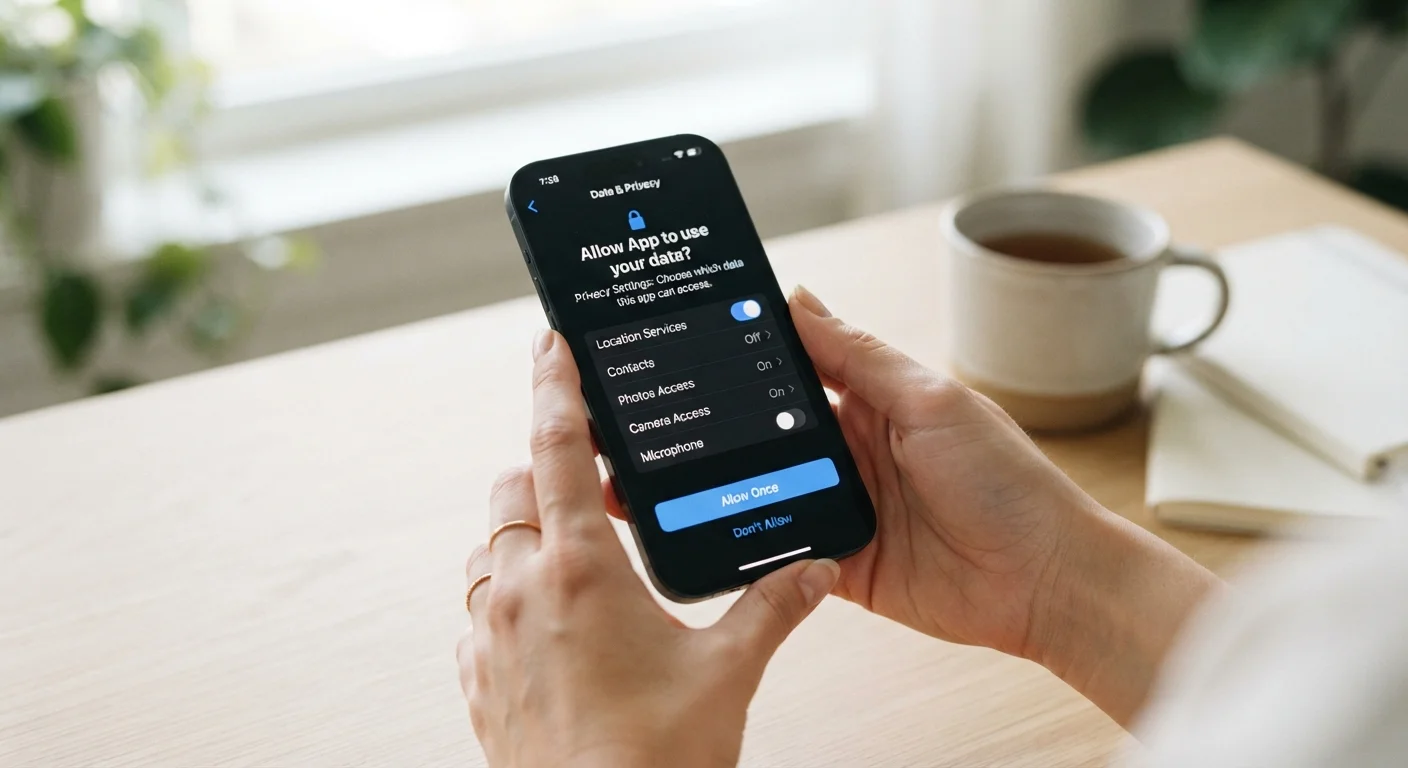
Why the Setup Moment Matters More Than Most People Realize
Unboxing a new device feels exciting, and most people want to get to the useful part as quickly as possible. But the first ten minutes of setup quietly determine how much personal data your device will collect and share - sometimes for years. Manufacturers and platform providers design setup flows to be fast and frictionless, which means the privacy-protecting choices are often a few taps off the default path.
Understanding what each prompt is asking - and why it matters - puts you in a much stronger position. This isn't about being suspicious of technology; it's about making deliberate choices rather than accidental ones. The Online Safety & Privacy hub offers broader context if you want to understand how these principles connect to your wider digital life.
What you will need
Device Settings App
Used to review and adjust permissions, location services, and privacy controls after initial setup.
Password Manager
Helps generate and store a strong, unique password for your device account without having to memorize it.
Wi-Fi Network
Required to download system updates and complete account sign-in securely during setup.
Step-by-Step: Privacy-Conscious Device Setup
Follow these steps in order when setting up any new smartphone, tablet, or laptop. Most steps apply across iOS, Android, and Windows - specific menu paths are noted where they differ.
Don't Rush Through Setup Screens
Setup wizards are designed to move quickly, but many permission prompts are easy to accept without reading. Tapping 'Agree' or 'Allow All' on unfamiliar screens can grant apps and services broad access to your location, contacts, and usage data. Slow down at each screen and read what is being requested before proceeding.
Set a strong screen lock before anything else
The first meaningful privacy decision is your lock screen. Choose a PIN of at least six digits, a strong alphanumeric passcode, or biometric authentication (fingerprint or face recognition) as a backup to a passcode - not a replacement for one. Avoid simple patterns or four-digit PINs that are easy to guess or observe.
On most devices, this option appears early in the setup wizard. If you miss it, go to Settings > Security (Android) or Settings > Face ID & Passcode (iOS).
Create or sign in to a dedicated account
Most devices ask you to sign in to a platform account (Google, Apple ID, or Microsoft). Use an account you control and that has two-factor authentication (2FA) enabled. 2FA adds a second verification step - such as a code sent to your phone - making unauthorized access much harder even if someone obtains your password.
If you share a household with others, see our guide on account separation for shared devices for additional considerations before signing in.
Decline or limit location access during setup
Setup screens frequently ask for always-on location access. Unless a specific feature requires it, choose While Using the App or Deny at this stage. You can always grant location access later on an app-by-app basis. Always-on location sharing sends your position continuously to app developers and, in some cases, advertisers.
After setup, audit location permissions under Settings > Privacy > Location Services (iOS) or Settings > Location > App Permissions (Android).
Review diagnostic and analytics sharing options
Devices typically offer to send diagnostic data, crash reports, and usage analytics back to the manufacturer. While this data helps improve products, it also means behavioral information about how you use your device is transmitted regularly. You can usually opt out or choose a minimal sharing option during setup - look for screens labeled Diagnostics, Usage Data, or Analytics.
Install system updates before adding apps
Once basic setup is complete, check for system updates before downloading any third-party apps. Updates often include security patches that close known vulnerabilities. Installing them early means every app you add afterward runs on a more secure foundation.
Find updates under Settings > General > Software Update (iOS) or Settings > System > System Update (Android).
Audit app permissions before first use
When you install your first apps, each will request permissions - camera, microphone, contacts, notifications, and more. Grant only what the app clearly needs to function. A photo editing app needs camera access; it does not need access to your contacts or location. Deny anything that seems unrelated to the app's core purpose.
For a broader framework on staying secure across all your devices, our guide on device security principles covers what to maintain over time.
Revisit Permissions After Setup
You don't have to get every setting perfect during the initial setup. On both iOS and Android, you can review all app permissions at any time under Settings > Privacy (or Apps > Permissions). Make it a habit to do a quick audit after the first week of use, once you know which apps you actually use regularly.
Skipping Setup Doesn't Skip the Defaults
If you rush through setup and skip reviewing permissions, your device will fall back to manufacturer or app defaults - which typically allow broad data collection. It is worth returning to Settings afterward to audit what was granted automatically. Permissions left unchecked can accumulate across dozens of apps over time.
Once your device is fully set up, consider applying the same careful approach to your web browser. Our guide to browser security settings covers the controls most people never change. And if you ever plan to pass this device on to someone else, our checklist for handing over an old device will help you clear it properly before it leaves your hands.
The content on this site is for informational purposes only and is not a substitute for professional advice. Always consult a qualified professional for guidance specific to your situation.