

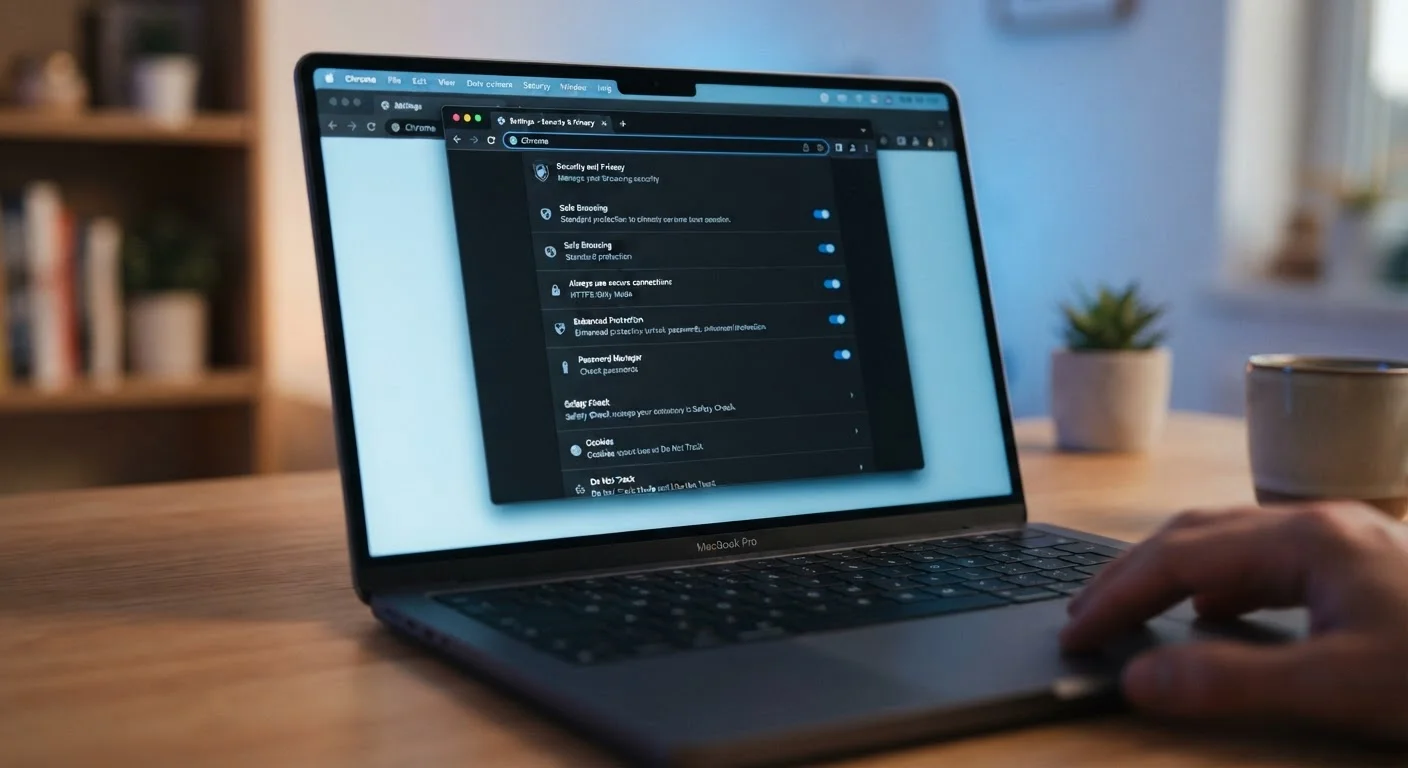
Why Browser Settings Matter More Than Most People Realise
Your browser is the front door to almost everything you do online - banking, email, shopping, healthcare portals. Yet most people install a browser, accept the defaults, and never return to its settings. Those defaults aren't always set with your privacy or security in mind.
Browser developers balance usability, compatibility, and security differently, which means stronger protections often require an opt-in. The good news is that the most effective settings are already built in - they just need to be switched on.
This guide walks you through the five settings that offer the most protection for the least friction. You don't need to be technical. You just need to know where to look. And once you're done here, consider pairing these changes with a broader review - the digital privacy audit checklist covers everything from your browser to your smart TV.
What you will need
The Settings to Change - and What They Actually Do
The steps below apply to the four most widely used desktop browsers: Chrome, Firefox, Safari, and Edge. Menu labels differ slightly between them, but the underlying options exist in all four. Work through each step in order - together they form a meaningful baseline of protection.
Enable Enhanced Safe Browsing (or equivalent)
Most major browsers include a real-time threat detection feature that checks the sites you visit against a constantly updated list of known phishing pages, malware hosts, and deceptive downloads.
- Chrome: Settings → Privacy and Security → Security → select Enhanced protection
- Firefox: Settings → Privacy & Security → scroll to Deceptive Content and Dangerous Software Protection → check all boxes
- Edge: Settings → Privacy, search, and services → Microsoft Defender SmartScreen → toggle on
- Safari: Preferences → Security → check Warn when visiting a fraudulent website
Enhanced protection sends more data to Google for real-time analysis - standard protection is a reasonable middle ground if that trade-off concerns you.
Switch on HTTPS-Only mode
HTTPS encrypts the connection between your browser and a website. Older HTTP connections transmit data in plain text, making them easier to intercept on public networks.
- Firefox: Settings → Privacy & Security → scroll to HTTPS-Only Mode → select Enable HTTPS-Only Mode in all windows
- Chrome: Settings → Privacy and Security → Security → toggle on Always use secure connections
- Edge: Settings → Privacy, search, and services → toggle on Automatically switch to more secure connections
- Safari: HTTPS upgrading is handled automatically on modern versions - no manual toggle needed
When HTTPS-Only mode is on and a site only supports HTTP, your browser will warn you before loading it. You can still choose to continue if you trust the site.
Block third-party trackers and cookies
Third-party trackers are scripts from companies other than the site you're visiting. They follow your activity across the web to build advertising profiles. Blocking them has minimal impact on day-to-day browsing.
- Firefox: Settings → Privacy & Security → Enhanced Tracking Protection → select Strict
- Safari: Preferences → Privacy → check Prevent cross-site tracking
- Chrome: Settings → Privacy and Security → Third-party cookies → select Block third-party cookies
- Edge: Settings → Privacy, search, and services → Tracking prevention → select Strict
Strict mode occasionally breaks login buttons or video embeds on certain sites. If a site stops working, you can add it to an exceptions list without disabling blocking everywhere.
Review and restrict site permissions
Your browser grants individual websites access to your camera, microphone, location, and notifications - often without a clear reminder that those permissions remain active. Auditing these takes two minutes and is well worth it.
- In Chrome and Edge: Settings → Privacy and Security → Site Settings
- In Firefox: Settings → Privacy & Security → Permissions
- In Safari: Preferences → Websites → review Camera, Microphone, and Location columns
Look for sites that have ongoing access to your location or camera when you don't remember granting it. Remove access by clicking the site name and selecting Remove or setting the permission to Ask.
Disable saved passwords in the browser (and use a dedicated manager instead)
Built-in browser password storage is convenient but generally offers weaker protection than a dedicated password manager, especially if your device or browser account is ever compromised.
- In Chrome: Settings → Autofill and passwords → Google Password Manager → turn off Offer to save passwords
- In Firefox: Settings → Privacy & Security → Logins and Passwords → uncheck Ask to save logins and passwords
- In Safari: Preferences → Passwords → review stored entries and consider whether a standalone manager better fits your needs
- In Edge: Settings → Passwords → toggle off Offer to save passwords
If you choose to keep browser-based password storage, ensure your browser account itself is protected with a strong password and two-factor authentication.
Check Your Settings After a Major Browser Update
Browser updates occasionally reset or introduce new security options. After any significant version update, spend two minutes revisiting your Privacy and Security settings to confirm everything is still configured the way you intend. Treating it as a brief routine - rather than a one-time fix - keeps your protections current.
Browser security is one layer, not the whole picture. Habits matter just as much as settings - see common habits that quietly undermine online security for what else to address. And if you've accepted cookie banners without much thought, understanding what cookie consent actually means is a useful next read.
Keeping Your Settings Working Over Time
Browser settings can quietly revert after a major update, or new options may appear that weren't there before. A brief check every few months - especially after a significant browser version update - keeps your protections current.
It's also worth noting that browser security covers your browsing sessions, not your broader device or accounts. For a more complete picture, consider reviewing app permissions on your phone, the privacy settings on your social accounts (see this social media privacy audit), and the permissions you set when you first got your device using a guide like setting up a new device without compromising your privacy.
None of these steps guarantee complete protection - no single measure does. But each one meaningfully reduces your exposure, and taken together they make your online activity considerably harder to exploit.
No Setting Replaces Careful Judgment
Browser security settings reduce risk - they don't eliminate it. Phishing attacks, for example, often use legitimate-looking HTTPS sites that pass basic safety checks. Always pause before entering passwords or payment details anywhere you weren't expecting to be directed. Security tools and good habits work best together.
The content on this site is for informational purposes only and is not a substitute for professional advice. Always consult a qualified professional for guidance specific to your situation.