

Why Device Setup Prompts Deserve More Attention
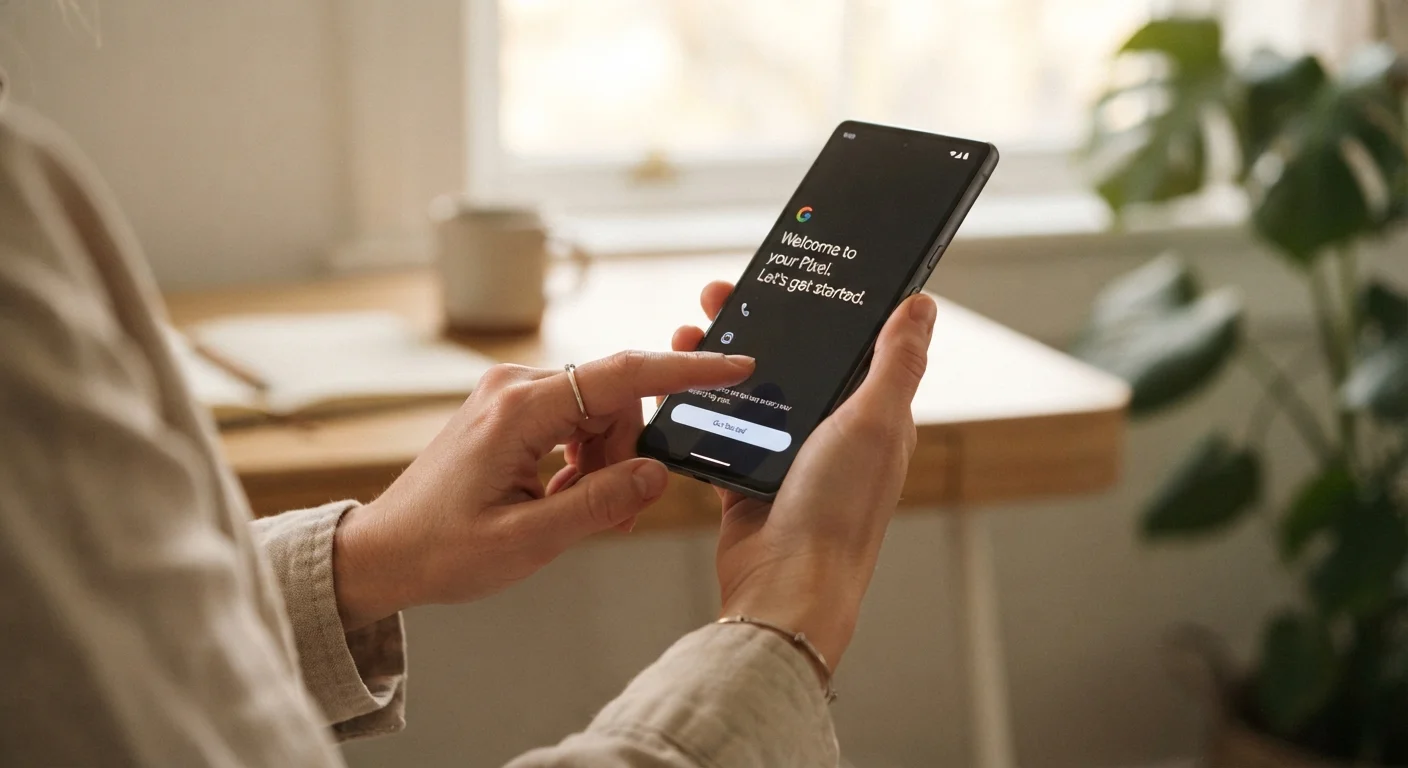
Unboxing a new device is exciting, and most people tap through the initial setup screens as quickly as possible to reach the device itself. This is exactly what those screens are designed for - a fast-moving flow that makes agreeing feel like the obvious, natural choice.
But those permission requests have real consequences. By the time a typical setup is complete, a device may have been granted access to your location, your contacts, your usage habits, and your diagnostic data - and may have opted you into personalized advertising by default. None of this is necessarily malicious, but much of it is optional, and most users are never told that.
The good news: every permission granted during setup can be reviewed and changed afterward. And understanding what each prompt means for your personal data makes each decision much easier the first time around.
What you will need
Step-by-Step: Working Through the Setup Flow Deliberately
The steps below apply broadly to consumer smartphones and tablets running current versions of iOS or Android. Desktop operating systems follow similar patterns. The specific screen names and menu locations will vary slightly by device and software version, but the underlying decisions - location access, ad tracking, diagnostic sharing, and screen locks - appear in nearly every major platform's setup flow.
Skipping Setup Screens Can Have Consequences
Tapping through setup screens quickly by pressing 'Agree' or 'Accept All' on every prompt can enable broad data collection, cross-app ad tracking, and automatic uploads of your contacts and location history. Slowing down for five minutes at the start is worth it.
Power on and choose your language and region
Turn on the device and select your language and region when prompted. These choices affect system defaults like date formats and keyboard layout, not privacy. Make sure you select your actual region - this determines which version of certain privacy disclosures you see.
Pause before connecting to Wi-Fi
Most setup flows ask you to connect to a network early on. Consider delaying this step until after you have reviewed key permission screens, which prevents background syncing before your preferences are set. When you are ready to connect, enter your Wi-Fi credentials as normal.
Sign in to your platform account - or create one
You will be asked to sign in with an Apple ID, Google account, or equivalent. If you are creating a new account, use a strong, unique password. Avoid using a social media account to sign in if the option is offered - keeping accounts separate limits how much data is linked across services.
Review location services carefully
Location access is one of the most consequential permissions you will encounter. Most devices offer options such as Always, While Using, or Never. For the device itself, 'While Using' is a reasonable default for most users. Avoid granting 'Always' access unless you have a specific, ongoing need for it - such as navigation apps.
Opt out of ad tracking and analytics
Setup menus on most platforms include a screen asking whether you want to share diagnostic data or enable personalized advertising. These are almost always optional. Look for options labeled Limit Ad Tracking, Personalized Ads, or Share Diagnostics and read each description before deciding. Declining these does not affect how the device functions. For similar prompts you will encounter on websites, understanding cookie consent covers the same logic in a browser context.
Set up a screen lock
Enable a PIN, passcode, or biometric lock (fingerprint or face recognition) before completing setup. A six-digit PIN is more secure than a four-digit one. Biometric options are convenient but consider that a passcode is also required as a fallback - make it something you can remember but that is not obvious to others.
Review app permissions after setup completes
Once the initial setup is done, go to Settings → Privacy (iOS) or Settings → Apps → Permissions (Android) and scan through what each category - contacts, microphone, camera, and calendar - has been granted. Revoke anything that does not make sense for an app's stated purpose. This final audit catches anything you may have approved too quickly during setup.
Use Airplane Mode for a Calmer Setup
Starting setup with Wi-Fi and mobile data turned off (or in Airplane Mode) prevents the device from syncing accounts or sending diagnostics before you have reviewed the settings. You can connect to your network once the initial permission screens are complete. See our home network setup guide for connecting your device once you're ready.
After Setup: Staying in Control of Your Permissions
A one-time review during setup is a strong start, but permissions accumulate over time as you install new apps. Each new app is another opportunity for a fresh wave of access requests, and many users approve them reflexively. Building a habit of reviewing permissions every few months - or whenever you install a batch of new apps - keeps your exposure in check.
If you ever plan to pass the device on to someone else, a thorough privacy review is essential well before that happens. Our guide on what to do before lending, selling, or recycling a device covers how to ensure your personal data does not travel with it.
You Can Always Change Settings Later
Agreeing to a permission during setup is not permanent. Every major mobile and desktop operating system lets you revisit and adjust app permissions, location access, and data-sharing preferences in the Settings menu at any time. If you are unsure during setup, declining is almost always the safer starting point.
The content on this site is for informational purposes only and is not a substitute for professional advice. Always consult a qualified professional for guidance specific to your situation.