

Start here
What Counts as a Personal Device?
Next
How Your Devices Connect and Communicate
Build your vocabulary
Key Terms You'll Encounter
Practical steps
Keeping Your Devices Working Well
Stay protected
Privacy and Safety Basics
What Counts as a Personal Device?
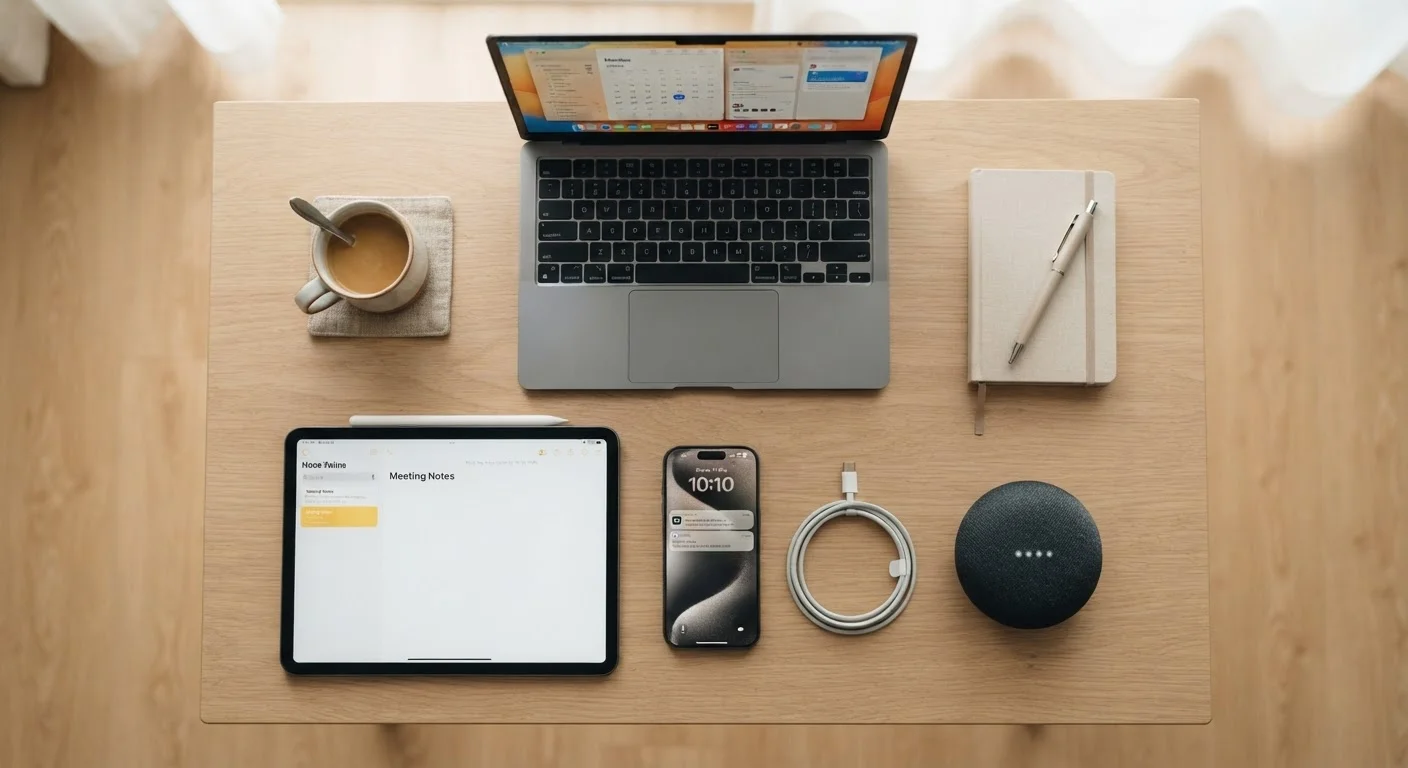
A personal device is any piece of consumer electronics primarily used by an individual - rather than a business or institution - to communicate, compute, or access information. The category is broader than most people initially assume.
- Smartphones - pocket-sized computers that also make calls
- Tablets - larger touchscreen devices suited to reading, video, and light productivity
- Laptops and desktop computers - traditional computing with keyboards and full operating systems
- Wearables - smartwatches and fitness trackers that log health and activity data
- Smart home devices - voice assistants, smart thermostats, connected lights, and security cameras
Each category has its own strengths. Smartphones excel at portability and communication; laptops handle demanding tasks like document editing or video calls. Smart home devices add convenience but also introduce new questions about connectivity and data. Understanding which device fits which need is the first step toward using technology more intentionally.
How Your Devices Connect and Communicate
Nearly every personal device today is designed to connect to the internet. That connection happens through one of a few channels:
- Wi-Fi
- A wireless connection to a local router, which then connects to the internet through your internet service provider. Most home devices use Wi-Fi.
- Cellular (4G/5G)
- A direct connection to mobile network towers. Smartphones rely on this when Wi-Fi isn't available.
- Bluetooth
- A short-range wireless link used to pair devices - like connecting wireless earbuds to a phone - rather than reaching the internet directly.
When devices connect, they send and receive data. This includes the content you see - web pages, streaming video - as well as information about you, such as your location or usage patterns. Understanding this helps explain why privacy settings matter. For a deeper look at data collection, see our beginner's guide to online privacy.
Not All Connections Are Equal
A device connected to your home Wi-Fi is generally safer than one using public Wi-Fi at a coffee shop or airport, because home networks are password-protected and managed by you. When you travel or work remotely, being aware of which network your device is using - and who else might be on it - is a simple but meaningful habit.
Key Terms You'll Encounter
Device packaging and reviews are full of technical shorthand. Knowing a handful of core terms removes a lot of confusion when you're reading about a device or troubleshooting a problem.
Operating System (OS)
The core software that manages everything a device does. Examples include iOS on iPhones, Android on many smartphones, and Windows or macOS on computers.
RAM
Random Access Memory - the short-term workspace your device uses while apps are running. More RAM generally means smoother multitasking.
Storage
The long-term space where your photos, apps, and files live when not in active use. Measured in gigabytes (GB) or terabytes (TB).
Firmware
Low-level software built into a device's hardware - common on smart home gadgets and routers. Like app software, firmware needs periodic updates for security and performance.
Cloud
Servers operated by a company that store your data over the internet, accessible from any of your devices. Examples include iCloud and Google Drive.
VPN
A Virtual Private Network encrypts your internet traffic, making it harder for others on the same network to intercept what you're doing online.
For a more complete reference, our plain-language glossary of device specifications covers dozens of additional terms in accessible language.
Keeping Your Devices Working Well
Good device habits don't require technical expertise - they require consistency. A few practices go a long way:
- Install software updates promptly. Updates patch security vulnerabilities and fix bugs. Enabling automatic updates removes the friction of remembering.
- Manage storage actively. Devices slow down when internal storage is nearly full. Periodically delete apps you don't use and move photos to a cloud backup or external drive.
- Restart regularly. A restart clears temporary files from memory and can resolve minor performance issues that accumulate over time.
- Protect physical hardware. Cases and screen protectors reduce damage from drops. Avoid exposing devices to extreme heat or moisture.
Set Up Automatic Updates Today
On most smartphones and laptops, automatic updates can be enabled in the Settings menu under a section usually called 'Software Update' or 'System Update.' Turning this on takes about 30 seconds and removes one of the most common reasons devices become vulnerable to security threats.
If your household shares devices, account separation becomes important. Learn how shared devices affect privacy and what settings to review when multiple people use the same phone or laptop.
Privacy and Safety Basics
Personal devices are powerful precisely because they know so much about you. That same quality makes basic privacy hygiene worth learning early.
- Review app permissions. Many apps request access to your camera, microphone, or location. Grant only what the app genuinely needs to function.
- Use strong, unique passwords. Reusing passwords across accounts amplifies the damage if one account is ever compromised.
- Enable screen lock. A PIN, fingerprint, or face unlock prevents unauthorized access if your device is lost or stolen.
- Be cautious on public Wi-Fi. Avoid sensitive transactions unless you are using a VPN to encrypt your traffic.
These habits form the foundation of a broader digital safety approach. For a comprehensive view, see The Full Picture: Protecting Your Digital Life Across Every Device and Account. And when you're ready to think about a device's full lifecycle - from setup to responsible disposal - Consumer Devices From Unboxing to End of Life is a natural next step.
Frequently Asked Questions
Both are touchscreen devices that run apps and connect to the internet. Smartphones are smaller, designed to be carried in a pocket, and can make cellular calls. Tablets have larger screens suited to reading or video but typically lack built-in cellular calling.
Install updates as soon as they are available, or enable automatic updates. Software updates often contain security fixes that protect your device from newly discovered vulnerabilities. Waiting too long leaves your device exposed.
Like any internet-connected device, smart home gadgets can collect data about how and when you use them. Reviewing privacy settings, using a strong Wi-Fi password, and keeping firmware updated are practical steps to reduce exposure.
RAM (Random Access Memory) is your device's short-term working memory. More RAM allows a device to run multiple apps simultaneously without slowing down. It does not affect how much content you can store permanently.
Public Wi-Fi networks are generally less secure than private home networks. Avoid logging into sensitive accounts - like banking - on public Wi-Fi unless you are using a VPN (Virtual Private Network) to encrypt your connection.
A device is approaching end of useful life when the manufacturer stops releasing security updates, it can no longer run current app versions, or performance significantly degrades. At that point, continued use can expose you to security risks.
The content on this site is for informational purposes only and is not a substitute for professional advice. Always consult a qualified professional for guidance specific to your situation.