

What Is Home Broadband?
Home broadband is a high-speed internet connection delivered to your residence over a physical or wireless infrastructure. Unlike the dial-up connections of the early internet era - which tied up your phone line and topped out at 56 Kbps - broadband provides an always-on connection capable of supporting multiple devices simultaneously.
The term broadband technically refers to a wide bandwidth data connection. In practical terms, it means fast enough for streaming video, video calls, online gaming, and remote work all at once. The Federal Communications Commission (FCC) defines a minimum broadband threshold of 25 Mbps download and 3 Mbps upload for a fixed residential service, though modern households often require much more.
Understanding how your broadband works - from the street-level infrastructure to the Wi-Fi signal reaching your phone - helps you troubleshoot problems, choose the right plan, and get consistent performance. For a detailed look at how everything fits together, see how broadband works end-to-end.
Connection Types: Which One Do You Have?
The type of broadband connection available to you depends largely on where you live and which providers serve your area. Each technology has different performance characteristics and infrastructure requirements.
- Fibre-optic (Fibre): Data travels as light pulses through glass or plastic cables. Fibre delivers the fastest and most consistent speeds available to residential customers, often with symmetrical upload and download rates.
- Cable: Uses the same coaxial cable infrastructure as cable TV. Generally fast and widely available in suburban and urban areas, though speeds can dip during peak usage hours when neighbors share the same line segment.
- DSL (Digital Subscriber Line): Delivered over standard copper telephone lines. Widely available but speeds degrade with distance from the provider's central office. Often the only wired option in rural areas.
- Fixed Wireless Access (FWA): A radio signal is transmitted from a nearby tower to an antenna mounted on your home. A growing option in areas where laying cable is impractical.
- Satellite: Data travels to and from a satellite in orbit. Available nearly anywhere, but traditional geostationary satellite services have high latency. Newer low-Earth orbit (LEO) satellite services have improved this significantly.
For a side-by-side breakdown of these technologies, home internet types explained covers each in depth.
25 Mbps
FCC minimum broadband definition
The FCC defines fixed residential broadband as a service delivering at least 25 Mbps download and 3 Mbps upload, though proposals to raise this threshold have been under active discussion.
~21 million
Americans still lack access to broadband
According to FCC estimates, approximately 21 million Americans lacked access to fixed broadband at the 25/3 Mbps threshold, with rural and tribal areas most affected.
~15
Average connected devices per US household
Research from Deloitte's Digital Media Trends survey found US households have an average of around 15 connected devices, up sharply from just a few years prior.
Understanding Internet Speeds
Internet speed is measured in megabits per second (Mbps) or gigabits per second (Gbps). Two numbers matter: download speed (how fast data arrives at your home) and upload speed (how fast you send data out). Most household activity - streaming, browsing, downloading - relies on download speed, but upload speed matters for video calls, cloud backups, and sharing large files.
A general rule of thumb:
- 25-50 Mbps: Adequate for a small household with light streaming and browsing.
- 100-200 Mbps: Comfortable for 3-5 devices with 4K streaming, video calls, and remote work.
- 500 Mbps-1 Gbps: Suitable for large households, heavy users, or home offices with multiple simultaneous demands.
Keep in mind that advertised speeds are maximums under ideal conditions. Real-world speeds can vary based on your connection type, router quality, device capability, and network congestion. What internet speed do you actually need at home walks through real usage scenarios in detail.
Run a speed test at different times of day - morning, evening, and late night - to detect congestion patterns rather than relying on a single measurement.
Cable connections in particular share bandwidth among nearby subscribers. Slowdowns during peak evening hours are a distinct problem from a slow baseline speed and point to different solutions.
When comparing ISP plans, pay as much attention to upload speed as download speed - especially if anyone in your household works remotely or frequently video calls.
Asymmetric connections common with cable and DSL can bottleneck upload-heavy tasks even when download speeds look impressive on paper.
Routers, Modems, and Wi-Fi
Two pieces of hardware sit between your ISP's network and your devices: the modem and the router. The modem translates the signal from your ISP into a form your home network can use. The router distributes that connection to your devices, either over Ethernet cables or Wi-Fi. Many ISPs provide a combined gateway device that performs both functions.
Wi-Fi operates on two primary frequency bands:
- 2.4 GHz: Longer range but slower maximum speeds. Better at penetrating walls. Prone to interference from neighboring networks and household devices like microwaves.
- 5 GHz: Faster speeds but shorter range. Ideal for devices close to the router. A newer 6 GHz band (Wi-Fi 6E) is becoming available on newer equipment with even less congestion.
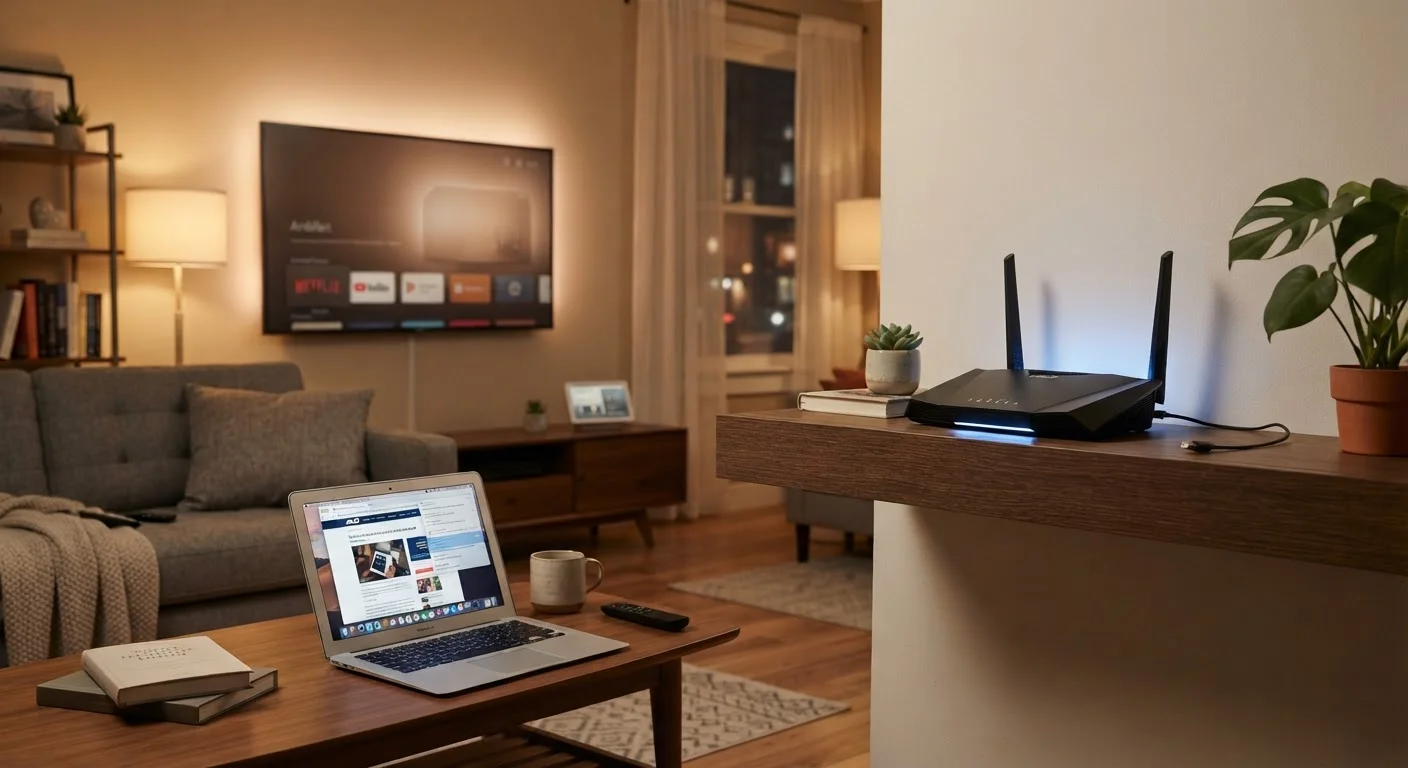
Router placement matters enormously. A router tucked in a corner of a basement will struggle to serve a three-floor home. Positioning it in a central, elevated location - away from thick walls, metal surfaces, and appliances - improves coverage. For larger homes, a mesh Wi-Fi system uses multiple nodes to create a single, seamless network across every room.
Optimize Router Placement First
Before upgrading your internet plan or buying new hardware, try repositioning your router. Moving it to a central, elevated location - such as a hallway shelf on the main floor - can dramatically improve Wi-Fi coverage throughout your home. This costs nothing and frequently resolves complaints about weak signal in distant rooms.
To understand how your specific devices interact with your home network, explore the Devices & Gadgets hub for practical guidance.
Securing Your Home Network
An unsecured home network can expose every connected device - from laptops to smart thermostats - to unauthorized access. Basic security steps are straightforward and make a meaningful difference.
- Change the default router password: Factory default credentials are publicly documented and frequently targeted. Set a unique, strong password for both the router admin panel and your Wi-Fi network.
- Use WPA3 or WPA2 encryption: Ensure your Wi-Fi network uses WPA2 at minimum. WPA3 is the current standard on newer hardware and provides stronger protection.
- Keep router firmware updated: Manufacturers release firmware updates to patch security vulnerabilities. Check your router's admin interface periodically or enable automatic updates if available.
- Create a guest network: Isolate visitors and smart home devices on a separate network so they cannot access your primary devices.
For broader guidance on staying safe online, the Online Safety & Privacy hub covers data protection, secure browsing, and privacy best practices.
Never Leave Your Router on Default Settings
Routers shipped with factory default usernames and passwords are a well-known security vulnerability. Attackers can use publicly available default credential lists to access your network remotely. Change both the admin password and your Wi-Fi password immediately when setting up any new router or gateway device.
Troubleshooting Common Broadband Problems
Before contacting your ISP, many common broadband issues can be diagnosed and resolved at home.
- Slow speeds across all devices
- Run a speed test (several free tools are available online) to compare your actual speeds to your plan's advertised rates. Try connecting a laptop directly to the router via Ethernet to isolate whether the issue is Wi-Fi or the connection itself.
- Intermittent drops
- Restart your modem and router by unplugging them for 30 seconds. Check all physical cable connections. If drops occur at predictable times, network congestion from neighbors on a shared cable segment may be a factor.
- Poor Wi-Fi in certain rooms
- Reposition your router to a more central location. Obstacles like concrete walls, large mirrors, and metal appliances absorb Wi-Fi signals. Consider a Wi-Fi extender or mesh system for stubborn dead zones.
- One device is slow while others are fine
- The issue is likely with that specific device - its Wi-Fi adapter, background processes, or network settings - rather than your broadband connection.
If problems persist after basic troubleshooting, document the issue with speed test results and timestamps before calling your provider. This gives their support team concrete information to work with and can accelerate resolution.
Advertised Speeds Are Not Guaranteed
Internet service plans advertise maximum speeds under optimal conditions. Actual speeds depend on your connection type, time of day, hardware quality, and the number of active devices. Always review a provider's service agreement for language about typical versus maximum speeds before committing to a plan.
The content on this site is for informational purposes only and is not a substitute for professional advice. Always consult a qualified professional for guidance specific to your situation.