

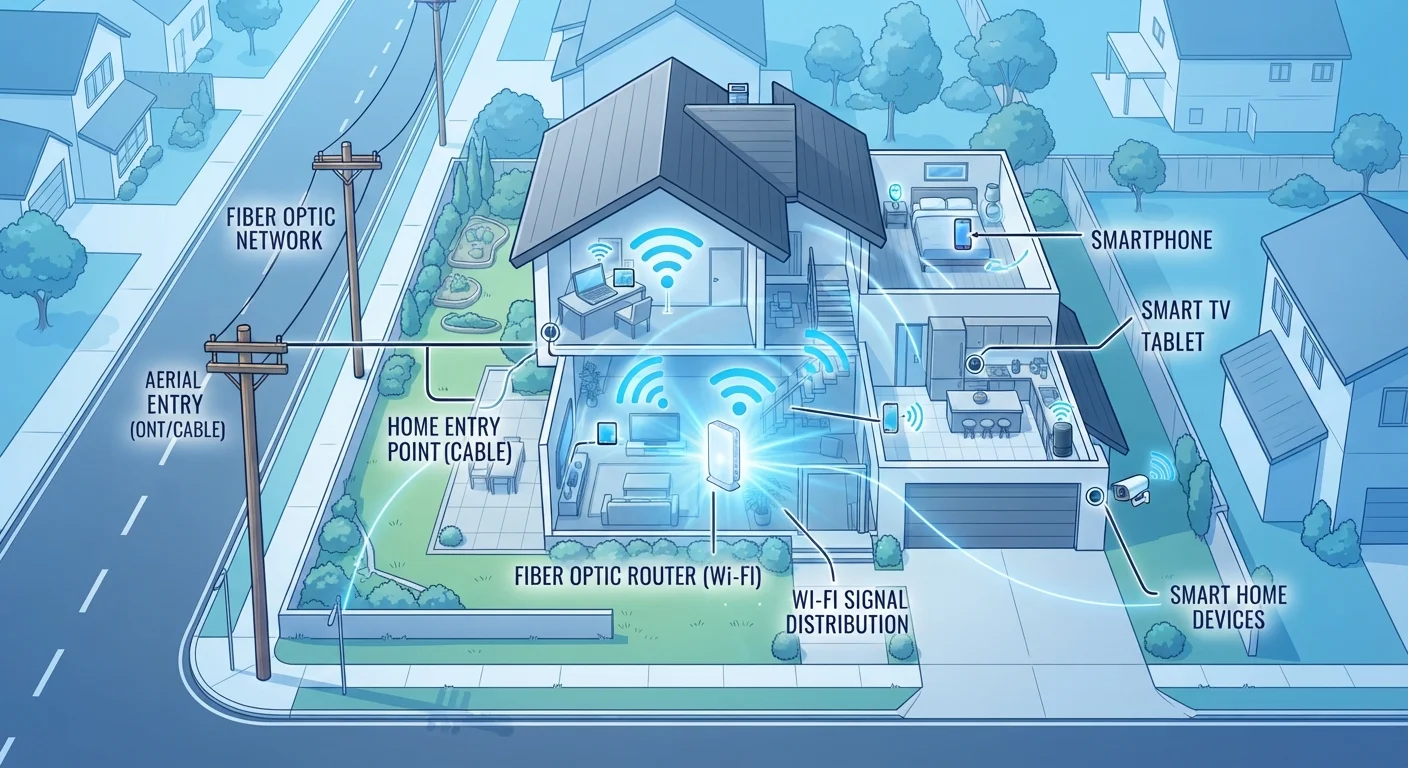
The Infrastructure Behind Your Connection
Before internet data reaches your home, it travels through a layered web of physical infrastructure. At the outermost edge sit large data centers and internet exchange points - hubs where global network traffic is routed between providers. From there, high-capacity fiber optic cables carry data across regions and cities, eventually feeding into your neighborhood's local network infrastructure.
The technology used in that last stretch - commonly called the last mile - has the greatest day-to-day impact on your connection. Last-mile options in the US include coaxial cable (used by cable providers), telephone copper lines (DSL), fiber optic lines running directly to the home (FTTH), and fixed wireless towers transmitting signals to an antenna on your roof. Each has different speed ceilings, latency characteristics, and vulnerability to congestion.
For a plain-language breakdown of terms like bandwidth, latency, and Mbps, see the Internet Jargon Decoded glossary.
~25 Mbps
FCC minimum broadband definition (download)
The FCC defines broadband as at least 25 Mbps download and 3 Mbps upload, though many households require significantly more for multiple simultaneous users.
~90%
US households with fixed broadband access
According to FCC broadband deployment data, the vast majority of US households have access to fixed terrestrial broadband, though rural access gaps remain significant.
5-7 years
Typical consumer router lifespan
Industry guidance generally suggests replacing home routers every five to seven years to keep pace with evolving Wi-Fi standards and security patches.
How Your ISP Delivers Service to Your Home
Your Internet Service Provider (ISP) manages the equipment and network that connects the broader internet to your address. The speed advertised on your plan represents a theoretical maximum under ideal conditions - actual throughput depends on how much capacity is shared among nearby customers, the condition of local infrastructure, and how the ISP manages network traffic during peak hours.
ISPs also assign your home an IP address, manage DNS (Domain Name System) lookups that translate website names into server addresses, and often provide the gateway device - the modem or modem-router combo - that enters your home. The quality and age of that device matters more than most subscribers realize.
Advertised Speed Is Not Guaranteed Speed
ISPs typically advertise "up to" speeds, which reflect theoretical maximums rather than what you'll consistently receive. Factors like network congestion during peak evening hours, the age of local infrastructure, and the distance from your home to the ISP's nearest node can all reduce real-world throughput. If your measured speeds consistently fall well below your plan's advertised rate, contact your ISP - it may indicate a technical issue on their end.
To go deeper on how broadband works as a system, the Everything You Need to Know About Home Broadband guide covers connection types, speeds, and setup comprehensively.
Routers, Modems, and the Gateway to Your Network
The modem converts the incoming signal from your ISP (coaxial, fiber, or phone line) into a digital signal your home network can use. The router then distributes that connection to your devices, either through ethernet cables or Wi-Fi. Many ISPs supply a single device that combines both functions.
Routers assign local IP addresses to each device on your network through a process called DHCP, and they enforce basic traffic management and security rules. An outdated router - even paired with a fast plan - can become a genuine bottleneck. Router hardware from more than five years ago may not support current Wi-Fi standards, limiting throughput to devices that are capable of much faster speeds.
Always test your speed both wired and wirelessly - the gap between those two numbers tells you exactly how much your Wi-Fi setup is costing you.
A large difference between wired and wireless speeds points to in-home factors like router placement, channel congestion, or device capability rather than your ISP plan.
If your ISP-supplied modem or gateway is more than four years old, ask whether a newer model is available - sometimes at no extra cost.
ISPs periodically update their approved equipment lists, and older gateway devices may lack support for DOCSIS 3.1 or current fiber standards, limiting the speeds they can actually deliver.
Wi-Fi Inside Your Home: Coverage, Interference, and Speed
Once data reaches your router, it travels wirelessly to your devices using radio frequencies. Most modern routers operate on two bands: 2.4 GHz (longer range, lower speed) and 5 GHz (shorter range, higher speed). Some newer routers also support 6 GHz under the Wi-Fi 6E standard, offering less congestion in dense environments.
Physical obstacles reduce signal strength significantly. Thick concrete walls, metal appliances, and floors between your router and device all attenuate the signal. Neighboring networks operating on the same channel create interference, which slows throughput without showing up as a loss of signal bars.
Place Your Router Centrally and Elevated
Router placement is one of the highest-impact, zero-cost improvements available to most households. Positioning your router in the center of your home, off the floor, and away from thick walls, microwaves, and cordless phone bases can noticeably improve coverage and reduce dead zones. Avoid placing it inside a cabinet or closet - enclosed spaces trap heat and block the signal.
For a deeper look at how your connected gadgets interact with your network, explore the Devices & Gadgets hub.
Devices, Apps, and Real-World Performance
Even a perfectly configured network can feel slow if the device connecting to it is outdated. Older smartphones and laptops may support only older Wi-Fi standards (such as Wi-Fi 4 or 5), meaning they cannot take full advantage of a modern router's capabilities. The number of simultaneous users and applications also matters - streaming video in 4K, video conferencing, and cloud backups all compete for available bandwidth.
Latency - the delay between sending a request and receiving a response - is often more disruptive than raw speed for activities like gaming, video calls, and real-time financial applications. A connection with modest download speeds but low, stable latency will often feel faster than a higher-speed plan with variable delays.
Understanding the terminology behind these measurements helps enormously. The Internet Glossary: Key Terms Every Household User Should Know covers concepts like DNS, NAT, and latency in plain language.
Diagnosing and Improving Your Setup
When performance is poor, isolating which layer of the chain is responsible saves time. Start with a wired speed test - plug a device directly into your router via ethernet and test at a site like fast.com or speedtest.net. If wired speeds match your plan, the issue is in your Wi-Fi. If wired speeds fall short, the problem is upstream: your modem, the ISP's equipment, or local infrastructure.
Common improvements include restarting your modem and router (which refreshes their network connections), repositioning your router to a central, elevated location, switching Wi-Fi channels to reduce interference, and using a wired connection for high-bandwidth tasks. In larger homes, a mesh network system - multiple access points working together - can eliminate dead zones without the complexity of traditional range extenders.
Staying safe online is a natural extension of understanding your network setup. The Online Safety & Privacy hub covers how to protect your data and devices once you're connected.
Public Wi-Fi Carries Real Security Risks
When you're away from your home network, connecting to public Wi-Fi exposes your traffic to potential interception, especially on networks that lack encryption. Avoid accessing sensitive accounts - banking, email, health portals - over unsecured public networks. Using a reputable VPN (Virtual Private Network) can add a layer of protection, but no tool eliminates all risk. Treat public Wi-Fi as a convenience tool, not a secure channel.
The content on this site is for informational purposes only and is not a substitute for professional advice. Always consult a qualified professional for guidance specific to your situation.