

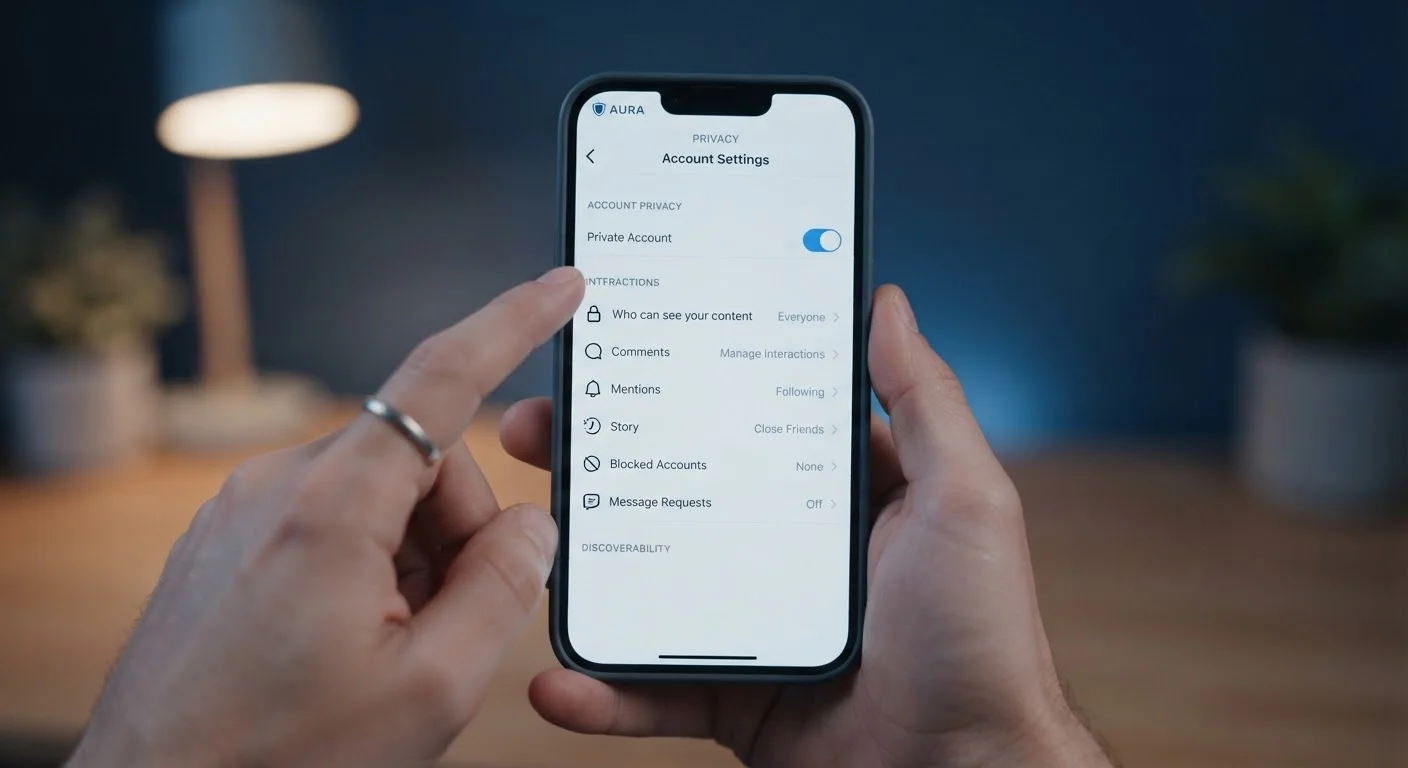
Why Default Settings Work Against You
Social media platforms are designed to maximise engagement and data collection - not to protect your personal information. When you create a new account, the default settings typically make your profile as visible as possible, allow broad data sharing with advertising partners, and give connected apps generous access to your profile. These defaults exist because more open data flows are commercially valuable to the platform.
The good news is that most platforms offer meaningful privacy controls. The challenge is finding them and understanding what each one actually does. This guide walks you through the settings that have the most real-world impact - skipping the ones that sound technical but change very little in practice.
For a broader look at behaviours that quietly erode your online security, see our guide to habits that undermine online security.
What you will need
What You Need Before You Start
You do not need any technical expertise to complete this audit. You will need access to your account, your login credentials, and enough time to work through each section carefully rather than rushing. If you use multiple platforms - a common scenario - consider auditing one account fully before moving on to the next.
Social media account (any major platform)
The account whose privacy settings you will review and update.
A secure, unique password or password manager
Needed to ensure your account credentials are strong before locking down other settings.
Authenticator app (e.g., any TOTP-compatible app)
Used to enable two-factor authentication as an added account security layer.
If you have recently set up a new device or app, it is also worth reviewing which permissions were granted during setup. Our article on setting up a new device without compromising your privacy covers that process in detail.
Step-by-Step: The Settings That Actually Matter
Work through the following steps in order. Each one addresses a distinct privacy risk. Not every option will look identical across platforms - the terminology varies - but the underlying settings exist on most major social media services.
Navigate to your privacy settings
On most platforms, privacy settings live inside your account menu - typically under Settings & Privacy or Account Settings. On mobile, look for a profile icon or hamburger menu (three horizontal lines). On desktop, check a dropdown near your profile photo or name.
Take a moment to scan every sub-category listed. Platforms often split privacy controls across multiple sections - one for profile visibility, another for data use, another for connected apps.
Restrict who can see your profile and posts
Look for an Audience or Who can see your posts? option. Change the default from Public or Everyone to Friends, Followers, or Only Me - whichever matches how you actually want to share content.
Also check:
- Who can see your friends or followers list - public friend lists can be used to map your social network.
- Who can look you up by email or phone number - set this to Nobody or the most restrictive option available.
- Whether your profile appears in search engine results - disable this if you prefer your profile not to surface in Google searches.
Control tagging and mentions
Tagging is one of the most overlooked privacy gaps. When someone tags you in a photo or post, that content can appear on your profile and be visible to their audience - potentially much wider than your own.
Find the Timeline and Tagging or Tags settings and enable:
- Tag review - approve tags before they appear on your profile.
- Mention controls - limit who can @mention you in comments or posts.
Audit third-party app permissions
Many people have used their social media account to log in to other apps and services (games, quizzes, news sites, shopping tools). Each of those connections may still have access to your profile data.
Go to Apps and Websites or Connected Apps in your settings. Review the list carefully and remove any app you:
- No longer use
- Do not recognise
- Did not intentionally authorise
Pay attention to the permissions each app requested - some may have access to your posts, friends list, email address, or even the ability to post on your behalf.
Limit data use for advertising
Most platforms use your activity - posts, likes, clicks, location - to build an advertising profile. Look for sections labelled Ad Preferences, Data Settings, or Personalisation.
Options typically include:
- Turning off interest-based or behavioural advertising
- Disconnecting off-platform activity tracking (data collected when you browse other websites)
- Opting out of having your account used in social ads shown to others
These settings rarely reduce the number of ads you see, but they do limit how much of your personal behaviour shapes those ads.
Enable two-factor authentication
Two-factor authentication (2FA) requires a second verification step - usually a code from a text message or authenticator app - whenever someone logs into your account from an unfamiliar device. It is one of the most effective protections against unauthorised account access.
Find Security or Login settings and look for Two-Factor Authentication or Two-Step Verification. An authenticator app is generally more secure than SMS codes, though either option is a meaningful improvement over no 2FA at all.
Platform Settings Change - Check Periodically
After a platform update or new feature rollout, some privacy settings can revert to defaults or new options may appear without notice. Set a reminder to revisit your settings every three to six months. The whole review takes less time once you know where everything is.
Once you have completed this audit, consider doing a parallel review of your social media privacy audit checklist to catch anything you may have missed.
Keeping Your Settings Current
Privacy settings are not a one-time fix. Platforms update their interfaces, introduce new features with new defaults, and occasionally reset settings after major updates. A practical approach is to revisit your privacy settings every few months - a 15-minute review is enough to catch any changes.
New Features Often Reset Existing Preferences
When a platform launches a new feature - such as a new sharing format or audience tool - it may activate with permissive defaults, even if your existing settings are locked down. Read any notification about new features carefully rather than dismissing it, and check whether it introduced new settings you need to review.
It is also worth thinking about your broader digital habits. How you behave online - what you share, who you connect with, how you respond to messages - matters just as much as your settings. Our article on why cookie consent choices matter is a useful next step for understanding how data follows you across the web.
The content on this site is for informational purposes only and is not a substitute for professional advice. Always consult a qualified professional for guidance specific to your situation.