

Start here
What Two-Factor Authentication Actually Is
Next
The Three Types of 2FA You'll Encounter
Then
How to Turn On 2FA (Step by Step)
Finally
Common Concerns - and Why They Shouldn't Stop You
What Two-Factor Authentication Actually Is
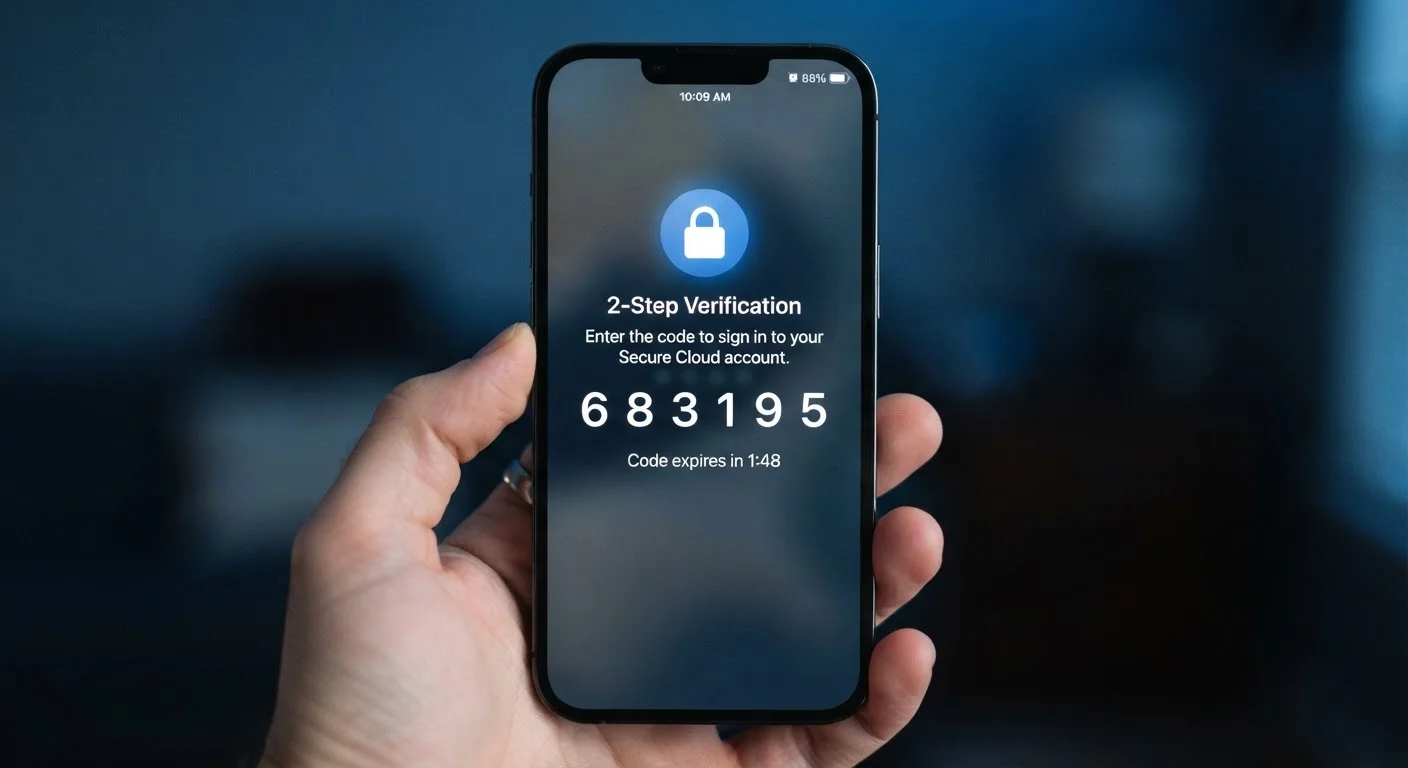
A password is something you know. Two-factor authentication (2FA) adds something you have - a temporary code, a fingerprint confirmation, or a physical key - so that knowing the password alone is no longer enough to get in.
Think of it like a safety deposit box that needs two separate keys. A thief who steals one key is still locked out. The same logic applies to your accounts: if your password turns up in a data breach (which happens far more often than most people realize), an attacker who tries to use it hits a second wall they cannot easily pass.
This matters because passwords are compromised in large batches. Hackers don't always target you individually - they run stolen credential lists against hundreds of sites automatically. 2FA interrupts that automated process entirely.
For a fuller picture of why passwords alone fall short, see Strong Passwords Are Only Half the Battle.
Two-factor authentication (2FA)
A login process that requires two separate proofs of identity - typically your password plus a temporary code - before granting access to an account.
Authenticator app
A smartphone app that generates rotating six-digit codes used as a second login factor, without relying on a phone number or text message.
SIM swapping
A fraud technique where an attacker convinces a mobile carrier to transfer a victim's phone number to a SIM card the attacker controls, allowing them to receive that person's SMS codes.
Backup codes
A set of one-time-use codes provided during 2FA setup that let you regain account access if you lose your primary second-factor device.
Multi-factor authentication (MFA)
A broader term for any login system that requires more than one type of verification. Two-factor authentication is the most common form of MFA.
Credential stuffing
An automated attack where hackers use large lists of stolen usernames and passwords to try logging into many different websites at once.
The Three Types of 2FA You'll Encounter
Not all second factors are equal. Here are the three most common, from most to least secure:
- Authenticator apps - Apps such as those built into your phone's operating system or available as standalone downloads generate a fresh six-digit code every 30 seconds. Because the code never travels over a phone network, it's much harder to intercept. This is the recommended method for most people.
- SMS text codes - The service texts a code to your phone number. This is convenient and widely supported, but a tactic called SIM swapping - where a criminal convinces your carrier to redirect your number - can defeat it. Still, it is far better than no 2FA at all.
- Hardware security keys - A small physical device that plugs into a USB port or taps wirelessly. It offers the strongest protection available and is worth considering for journalists, activists, or anyone with elevated risk. For most everyday users, an authenticator app strikes the right balance.
Start with an authenticator app, not SMS
When a service offers both options, choose an authenticator app over SMS codes for accounts that hold financial or personal data. The setup takes the same amount of time, but the protection is meaningfully stronger. If SMS is the only option available, enable it - it is still a significant upgrade over a password alone.
How to Turn On 2FA (Step by Step)
The specific menus vary by service, but the general process is consistent across almost every major platform:
- Go to your account's security settings. Look for a menu labelled Security, Privacy, or Account. On mobile apps, it's often under your profile icon.
- Find the 2FA or two-step verification option. It may also be called multi-factor authentication (MFA) or login verification.
- Choose your second factor. Select an authenticator app if available; otherwise choose SMS.
- Scan the QR code or enter the setup key into your authenticator app, or enter your phone number for SMS.
- Save your backup codes. The service will display a set of single-use recovery codes. Store these securely - in a password manager or printed in a safe place - before you finish setup.
- Confirm the setup. Enter the first code your app generates to verify everything is working.
Start with your email account first. Because so many other accounts use email for password resets, securing it has a multiplier effect on your overall safety. Then move to banking, social media, and any account tied to payment information.
2FA is one piece of a larger approach to account security. The full picture of protecting your digital life covers the other layers worth putting in place.
Backup codes are easy to overlook
Services display backup codes only once, right after setup. Many users skip past them in a hurry and then face a recovery problem months later. Take 60 seconds to copy them into a password manager or write them down before moving on. This single habit prevents the most common 2FA-related lockout.
Common Concerns - and Why They Shouldn't Stop You
Many people delay turning on 2FA because it sounds complicated or inconvenient. Here's an honest look at the most common hesitations:
- "I'll get locked out of my account."
- This is the most valid concern - and the reason backup codes exist. Save them during setup and you'll always have a recovery path.
- "It's too much friction every time I log in."
- Most services let you mark personal devices as trusted, so you only see the second prompt on unfamiliar devices or after a set number of days.
- "I don't have anything worth protecting."
- Compromised accounts are used for fraud, spam campaigns, and identity theft - often without the owner noticing for weeks. The value is in the identity, not just the data you can see.
If you've already worked on building stronger passwords, adding 2FA is a natural next step. For a deeper look at why even well-chosen passwords can fall short, see how password habits leave accounts exposed.
2FA won't protect against every threat, but it eliminates the most common one: someone using a stolen password to walk straight into your account. That alone makes it one of the highest-value security steps any everyday user can take.
Frequently Asked Questions
Most services provide backup codes when you set up 2FA - save these somewhere secure, like a printed sheet or a password manager. You can also designate a backup method such as an alternate email or a secondary authenticator device before you lose access.
SMS 2FA is significantly safer than using a password alone and is worth enabling if it's your only option. However, it is more vulnerable to SIM-swapping attacks than authenticator apps, so upgrade to an app-based method on high-value accounts when available.
The added step typically takes 10 to 30 seconds. Many services offer a 'remember this device' option so trusted devices only prompt for the second factor occasionally, reducing friction substantially.
No security measure is completely unbreakable. Sophisticated phishing attacks can sometimes intercept SMS codes in real time. Authenticator apps and hardware security keys are more resistant. The key point is that 2FA raises the effort required to compromise an account dramatically.
Start with your email account - it is often used to reset passwords on everything else. Follow with banking, financial apps, and social media. From there, enable 2FA on any account that stores personal or payment information.
The content on this site is for informational purposes only and is not a substitute for professional advice. Always consult a qualified professional for guidance specific to your situation.