

Start here
What You Need Before You Start
Build the foundation
Understanding the Hardware: Modem vs. Router
Configure
Connecting and Configuring Your Router
Connect devices
Getting Devices on the Network
Optimize
Improving Coverage and Reliability
Stay safe
Next Steps: Security and Beyond
What You Need Before You Start
Setting up a home network is more straightforward than it sounds, provided you gather the right pieces first. Here is what you will need:
- An internet service plan - arranged in advance with an ISP (Internet Service Provider).
- A modem - sometimes provided by your ISP, sometimes purchased separately.
- A router - often bundled with the modem as a single gateway device.
- An ethernet cable - usually included with the equipment, used to connect the modem to the router.
If your ISP ships you a combined gateway device, steps involving separate modem-to-router cabling do not apply. Check what equipment your ISP requires before purchasing anything separately. For a broader picture of how all these pieces fit into the larger picture of home broadband, see our complete broadband guide.
Modem
A device that connects your home to your ISP's network by converting the incoming signal into a format your home equipment can use.
Router
A device that takes the internet connection from your modem and distributes it wirelessly (Wi-Fi) and through cables to all your devices.
SSID
Short for Service Set Identifier - this is simply the name of your Wi-Fi network as it appears when you search for networks on a phone or computer.
WAN port
The 'Wide Area Network' port on a router - this is where you plug in the cable coming from your modem to bring internet into the router.
Ethernet
A wired connection that physically links a device to the router using a cable, typically providing faster and more stable speeds than Wi-Fi.
Gateway
A single device that combines the functions of both a modem and a router, often provided by ISPs to simplify home network setup.
Understanding the Hardware: Modem vs. Router
Confusion about modems and routers is extremely common. Think of it this way: the modem is the translator between your ISP's signal and your home's equipment. The router takes that translated signal and shares it wirelessly and through cables to every device in your home.
Without a router, only one device could use the internet at a time. Without a modem, the router has no signal to share. Together, they form the backbone of your home network. Many ISPs supply a gateway - a single box that combines both functions - which reduces the number of devices you need to manage.
Understanding how your internet signal travels from the street to your screen can also help you troubleshoot problems later.
Connecting and Configuring Your Router
Once you have your equipment, setup follows a consistent sequence:
- Connect the modem to your ISP's outlet (coaxial cable for cable internet, phone line for DSL, or fiber terminal for fiber).
- Run an ethernet cable from the modem's output port to the router's WAN (internet) port. The WAN port is usually labeled and color-coded differently from the other ports.
- Power on the modem first, wait for it to fully initialize (roughly 60-90 seconds), then power on the router.
- Access the router's admin panel by typing its IP address into a browser - commonly printed on the router's label along with default login credentials.
- Change the default network name (SSID) and Wi-Fi password to something unique. This is the single most important configuration step.
Name Your Network Something Non-Identifying
Avoid using your name, address, or ISP's default name for your network SSID. A generic or creative name gives away less information to anyone scanning for nearby networks. It does not need to be funny - just avoid anything that ties it to your household.
Many modern routers include a companion smartphone app that walks you through these steps visually, which can make the process easier for first-time users.
Getting Devices on the Network
With the router configured, connecting devices is straightforward. For wireless devices - phones, tablets, laptops - open the Wi-Fi settings, select your new network name, and enter the password you just set. For stationary devices - desktop computers, smart TVs, gaming consoles - an ethernet cable plugged directly into the router generally provides faster, more stable performance than Wi-Fi.
If you are setting up a new device and being prompted for various app permissions during the process, take a moment before tapping through everything. Our guide on setting up a new device without oversharing covers which prompts deserve a second look.
Never Use Default Passwords
Default router admin credentials (like 'admin'/'password') are publicly documented and well known. Leaving them unchanged makes your router easy to access by anyone on your network. Change both the admin password and the Wi-Fi password during your very first setup session.
Improving Coverage and Reliability
Even a correctly configured router can deliver inconsistent coverage if it is poorly placed. Practical steps to improve signal strength include:
- Move the router to a central location - signals radiate outward in all directions, so a central position covers more of your home.
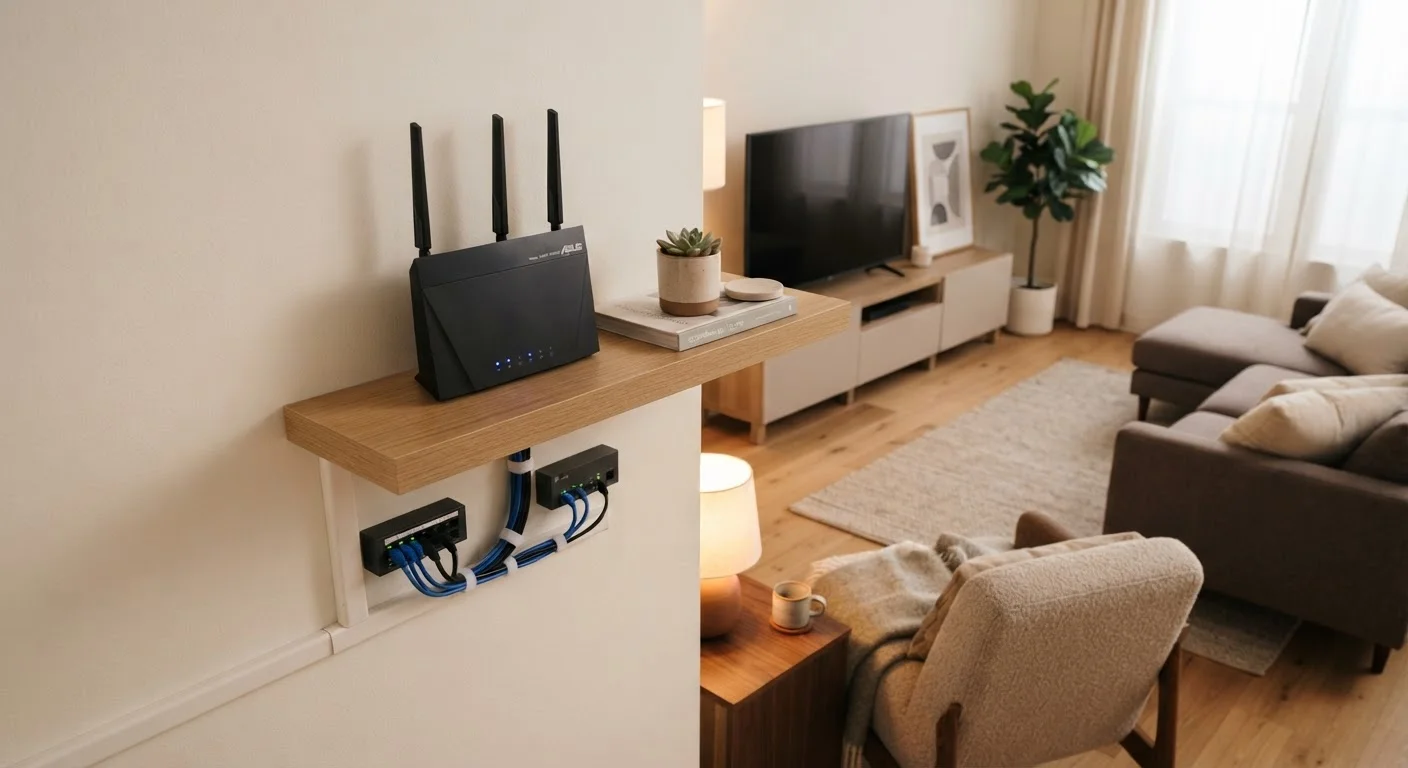
- Elevate the router - placing it on a shelf rather than the floor reduces interference from furniture and flooring.
- Keep it away from microwaves, cordless phones, and baby monitors, which can interfere with the 2.4 GHz band.
- Consider a mesh Wi-Fi system for larger homes - mesh systems use multiple access points to blanket the home in coverage instead of relying on a single router.
If certain rooms consistently have poor signal, a Wi-Fi extender (also called a range extender or repeater) can help bridge the gap, though mesh systems generally provide a more seamless experience.
Next Steps: Security and Beyond
A working network is a great start - but a default or carelessly configured network is a security risk. At minimum, ensure you have completed these steps before considering setup done:
- Changed the router's admin login password (not just the Wi-Fi password).
- Enabled WPA3 or WPA2 encryption on your Wi-Fi network (found in router wireless settings).
- Disabled remote management if you do not plan to access the router from outside your home.
For a deeper dive into protecting your household, see practical home network security habits and our guide to securing your network without a technical background. Security is not a one-time task - revisiting your settings every few months is a healthy habit.
Frequently Asked Questions
Most households need both. The modem connects your home to your internet service provider (ISP), while the router distributes that connection to your devices. Many ISPs offer a combined modem-router unit, called a gateway, which can simplify setup.
Place your router in a central, elevated, open location - not inside a cabinet or on the floor. Walls, large appliances, and floors all reduce signal strength. Centralizing the router ensures more even coverage throughout your home.
Type your router's IP address (commonly 192.168.1.1 or 192.168.0.1) into any web browser's address bar while connected to the network. The login credentials are usually printed on the router's label.
Yes, for most standard setups. ISPs provide step-by-step instructions with new equipment, and many routers include guided setup apps. If your ISP requires a professional installation - common with fiber connections - they will typically schedule a technician visit.
2.4 GHz travels farther and passes through walls more easily, making it better for distant or moving devices. 5 GHz offers faster speeds over shorter distances, ideal for streaming or gaming nearby. Most modern routers broadcast both simultaneously.
Immediately - ideally before you connect any personal devices. At minimum, change the default router password and set a strong Wi-Fi password during initial setup. You can always revisit more advanced security practices later.
The content on this site is for informational purposes only and is not a substitute for professional advice. Always consult a qualified professional for guidance specific to your situation.