

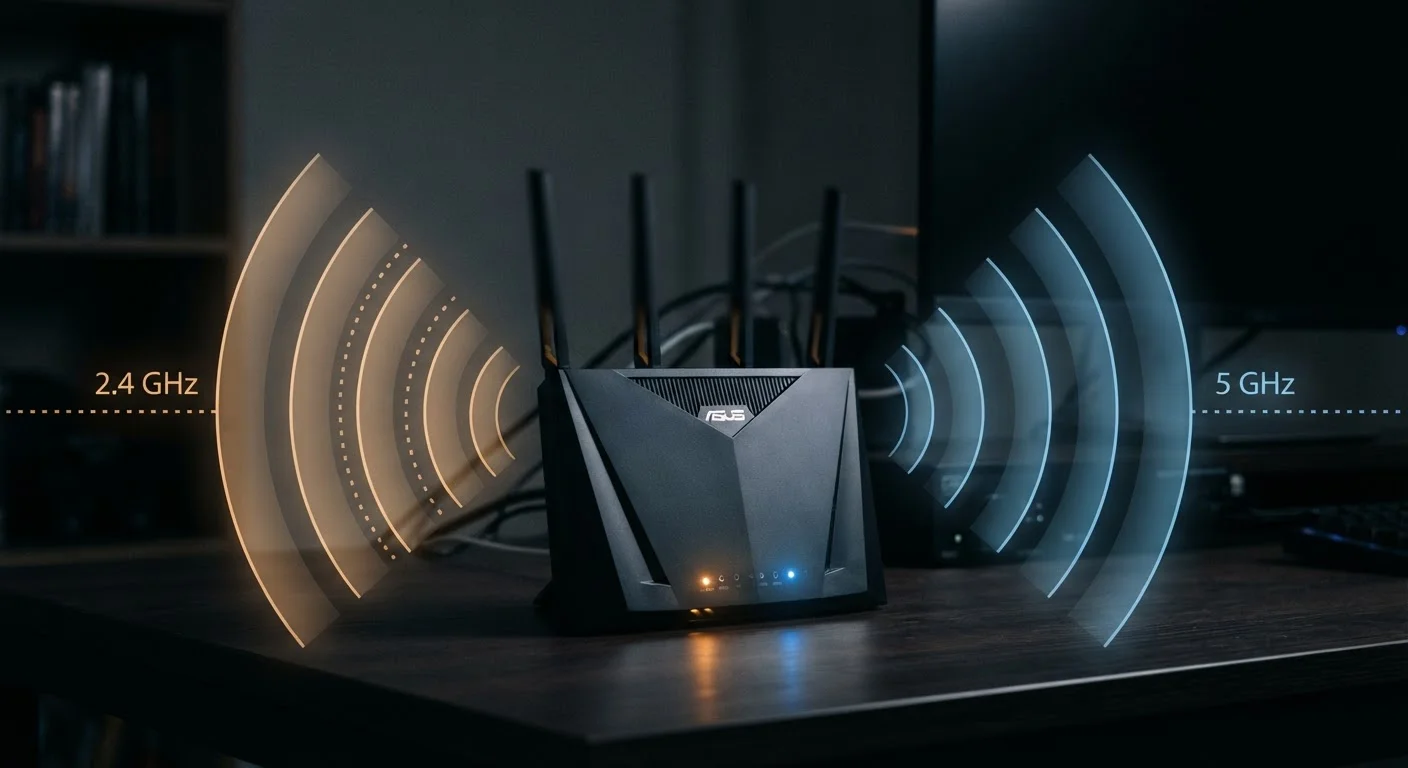
Two Bands, Two Very Different Behaviors
Every Wi-Fi router is essentially a radio transmitter. It sends and receives data over radio waves, and like all radio systems, the frequency it uses shapes how far the signal travels and how much data it can carry at once.
The 2.4 GHz band uses lower-frequency waves. These travel farther and pass through walls and floors more easily - useful in larger homes or for devices in remote rooms. The trade-off is that the band carries less data per second and is shared by an enormous number of devices: older routers, microwaves, baby monitors, and Bluetooth gear all compete in this same slice of spectrum.
The 5 GHz band uses higher-frequency waves. It can move data much faster and is less congested in most environments, but those same higher-frequency waves lose energy more quickly. Walls, furniture, and distance all degrade the signal faster than with 2.4 GHz.
Understanding this trade-off is the foundation for smarter home network decisions. For a deeper look at why signals fade in specific rooms, see our guide to Wi-Fi dead zones.
3
Non-overlapping channels on 2.4 GHz (US)
The FCC allocates only channels 1, 6, and 11 as non-overlapping in the 2.4 GHz band, meaning all competing networks share just three distinct lanes.
25+
Non-overlapping channels available on 5 GHz
The 5 GHz band offers significantly more usable channel space in the US, which is a primary reason it experiences less interference in dense environments.
~150 ft
Typical indoor range of 5 GHz
Under real-world indoor conditions with walls and furniture, 5 GHz range is often cited around 150 feet, roughly half the effective range of 2.4 GHz.
What Channels Are - and Why Congestion Happens
Each band is divided into channels - narrower slices of the frequency range over which individual networks operate. Think of them like lanes on a highway. If all traffic crowds into the same lane, everyone slows down.
The 2.4 GHz band has only three non-overlapping channels in the US (channels 1, 6, and 11). In densely populated areas - apartment buildings, suburban neighborhoods - dozens of networks may all be competing on these same three channels, creating interference and degrading performance for everyone.
The 5 GHz band offers significantly more non-overlapping channels, which is one reason it tends to feel faster in crowded environments even beyond its raw speed advantage. Fewer competing networks occupy any given channel.
Interference Isn't Only From Other Routers
The 2.4 GHz band is also used by microwave ovens, cordless phones, and many Bluetooth devices. Operating a microwave while streaming video on a 2.4 GHz network can cause momentary interference. This is another practical reason to move bandwidth-hungry devices to 5 GHz whenever range allows.
Many routers are set to choose their channel automatically. This works reasonably well in low-density areas, but in congested environments, manually selecting the least-used channel - which free apps like Wi-Fi Analyzer can help identify - can produce noticeable improvements.
For a broader look at what truly determines your connection speed, our article on Wi-Fi speed misconceptions separates fact from fiction.
Matching Devices to the Right Band
Not all devices have the same connectivity needs, and not all benefit equally from 5 GHz. A practical rule of thumb:
- Use 5 GHz for devices that are close to the router and demand high throughput - streaming 4K video, video conferencing, gaming consoles, and laptops used near the router.
- Use 2.4 GHz for devices that are farther away or have modest data needs - smart home sensors, older tablets, security cameras on the far side of the house, and devices that simply need a stable, low-traffic connection.
Dual-band routers broadcast both networks simultaneously. Some routers label them with the same name and route devices automatically (a feature called band steering); others let you give each band a distinct name so you can connect each device deliberately. Manual assignment often produces more predictable results.
Give Each Band a Different Network Name
If your router supports it, assigning separate SSIDs (network names) to your 2.4 GHz and 5 GHz bands gives you direct control over which devices connect where. Label them clearly - for example, 'HomeNet_2G' and 'HomeNet_5G' - and connect each device deliberately based on its location and usage.
If you're weighing whether wireless is the right choice at all for a given device, our overview of wired vs. wireless trade-offs covers when a physical cable may outperform any wireless band.
A Note on Newer Standards and Tri-Band Routers
Some newer routers are tri-band, adding a second 5 GHz radio (or, increasingly, a 6 GHz band under the Wi-Fi 6E standard). The 6 GHz band is even less congested because far fewer devices currently use it, but its range is shorter still - it's best suited for devices in the same room as the router.
The underlying principles remain the same regardless of how many bands your router offers: higher frequency means more speed and less congestion but shorter range; lower frequency means longer range but more competition for the spectrum.
Your router is just one part of your home network. For clarity on how it works alongside your modem, the modem vs. router explainer covers how these two devices divide the work of getting you online. And if you're curious how Wi-Fi compares to Bluetooth and NFC, our plain-language guide to short-range connectivity explains each technology's strengths.
Frequently Asked Questions
Not necessarily. The 5 GHz band is faster but has less range. Devices close to the router - like a streaming box or gaming console - benefit most from 5 GHz. Devices far away, like a smart thermostat across the house, often do better on 2.4 GHz.
Signal strength and speed are not the same thing. Congestion on a crowded channel - caused by your neighbors' networks using the same frequency - can slow your connection even when your signal looks strong. Switching channels or bands often helps.
Within each band, the available spectrum is divided into channels - smaller slices of frequency. If many nearby networks share the same channel, they interfere with each other and slow everyone down. Selecting a less-used channel can reduce this competition.
A dual-band router broadcasts on both 2.4 GHz and 5 GHz simultaneously, appearing as two separate networks. This lets you distribute your devices based on their needs rather than forcing all devices onto one band.
In ideal conditions - close range, minimal interference - yes. But at greater distances or through thick walls, 5 GHz can drop to speeds slower than 2.4 GHz because the signal degrades more quickly. Distance matters as much as band choice.
Many modern routers include a feature called band steering, which attempts to move devices to the best band automatically. Results vary by router and environment, and manually assigning devices sometimes produces more consistent performance.
The content on this site is for informational purposes only and is not a substitute for professional advice. Always consult a qualified professional for guidance specific to your situation.